Setting up an eSIM on a Google Pixel 7 Pro is genuinely a two-minute job — no SIM tool, no tray, no restart, and none of the fiddling the old plastic cards used to demand. The catch isn’t the setup itself; it’s the one step almost every guide leaves out, the one that lands travellers on a live eSIM with a phone that still won’t load a map. This walks through every tap, shows you how to run two eSIMs at once (a trick the Pixel 7 generation quietly added), and makes sure you don’t hit that “no internet” wall.
Quick primer first, in case you’re new to it: an eSIM is a digital SIM built into the Pixel. Rather than slotting in a card, you scan a QR code and the phone connects to a network over software. It’s every bit as secure as a physical SIM — and the real payoff is that you can buy a plan before a trip and step off the plane already online.
Does the Google Pixel 7 Pro support eSIM?
Yes — every Pixel 7 Pro supports it, as does the standard Pixel 7, and the steps are identical on both. One thing worth knowing before you dive in: on the Pixel 7 series you sometimes have to let the phone use an eSIM before a profile will install. As you start adding one, it may ask something like “Download a SIM instead?” or “Use 2 SIMs?” — say yes, and it opens up the eSIM slot alongside your physical SIM.
Want to confirm your phone’s ready in five seconds? Open Settings → Network & internet → SIMs and look for Add eSIM. If it’s there, you’re set. (Your Pixel also needs to be carrier-unlocked — a locked phone won’t take a travel eSIM, full stop.) For the wider device picture, our eSIM Compatible devices page has the full list.
How to set up eSIM on the Pixel 7 Pro
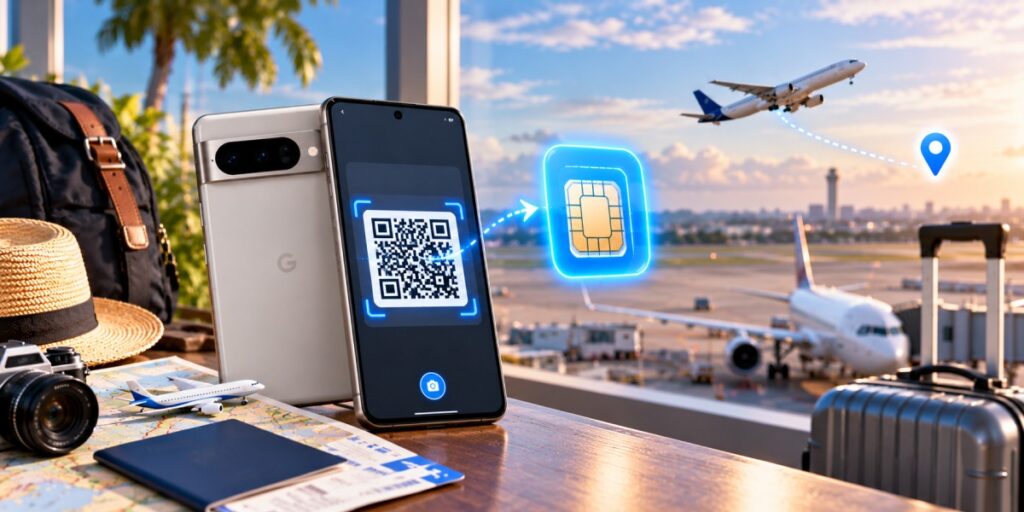
Do this on Wi-Fi before you fly. It’s a far calmer job at your kitchen table than in a crowded arrivals hall with a boarding crowd behind you.
Step 1 — Buy your plan. Pick up an eSIM from a provider like Airhub — buy eSIM for the country you’re headed to, or a global plan if you’re crossing borders. Once you’ve paid, a QR code lands in your inbox, usually with a manual activation code as a backup.
Step 2 — Open your Pixel’s SIM settings. Head to Settings → Network & internet → SIMs, then tap + Add eSIM (or Add more if there’s already one on the phone).
Step 3 — Scan the QR code, or type it in. Choose Use a QR code and point the camera at the one from your email. If the scan won’t catch — dim lighting, or the code sitting on the same screen you’re trying to scan from — tap Need help? → Enter it manually and key the details in instead.
Step 4 — Set it as your data line, and switch roaming on. When the profile installs, the phone asks you to confirm; follow the prompts and give the line a name you’ll actually recognise later (“UK trip” beats “eSIM 2”). Then make the eSIM your mobile data line and turn Data roaming on for that line. This is the step people skip, and it’s the reason so many “why isn’t my eSIM working” posts exist: a travel eSIM latches onto a local network as a roaming partner, so with roaming switched off you’ll have a perfectly installed eSIM and no internet whatsoever.
And that’s the lot — no pulling your physical SIM, no reboot. Your Pixel 7 Pro eSIM comes alive the moment you land and catch a local network.
Pixel 7 Pro dual eSIM: two numbers on one phone
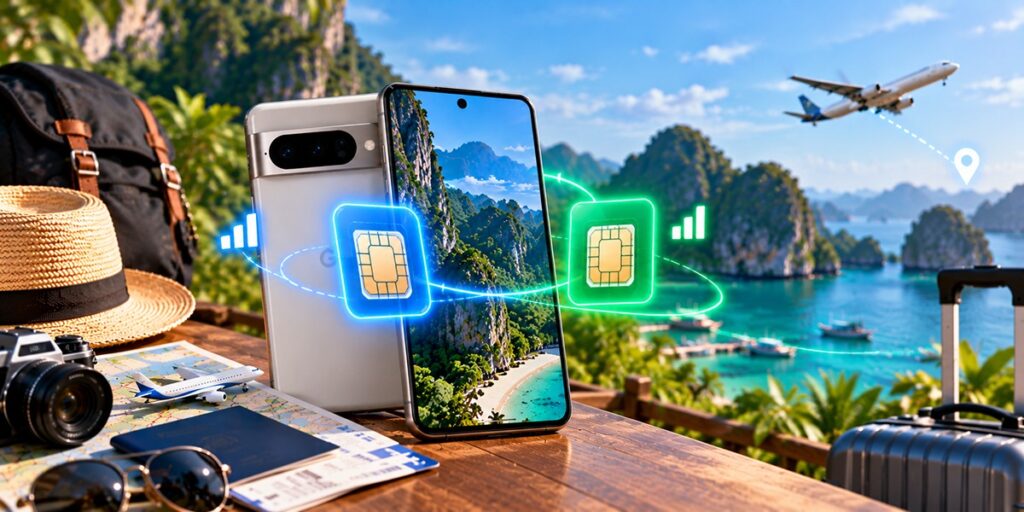
Here’s the upgrade most setup guides breeze past. From the Pixel 7 and 7 Pro onward, Google let the phone keep two eSIM profiles active at the same time — your home number and a travel data plan, for instance — rather than the old limit of one eSIM plus a physical SIM. You can stash several more on the phone too, and switch between them from Settings.
Two caveats worth being straight about. It leans on your carrier allowing dual eSIM — the hardware’s ready, but the network has to play along. And while both lines can take calls and texts, only one carries mobile data at a time, so you’ll nominate a data line (your travel eSIM, most likely) and swap it in Settings when you need to.
Honestly, though, most travellers never need the full two-eSIM juggle. The simplest setup wins: keep your home SIM on for calls and texts, run the AirHub eSIM for data, and switch your home line’s data off so it can’t quietly rack up roaming charges.
Using your Pixel 7 Pro eSIM abroad with Airhub

The entire appeal of an eSIM is landing connected. Buy and install it before you board, and your data’s live the second the wheels touch the runway — no scouting for an airport SIM kiosk, no roaming bill lurking at the end of the trip. Threading several countries into one journey? A Global eSIM plan covers multiple destinations on a single install, so you’re not starting over at every border. Top-ups, switching between stored plans, support — it all sits in the AirHub app.
eSIM installed but no internet? Quick fixes
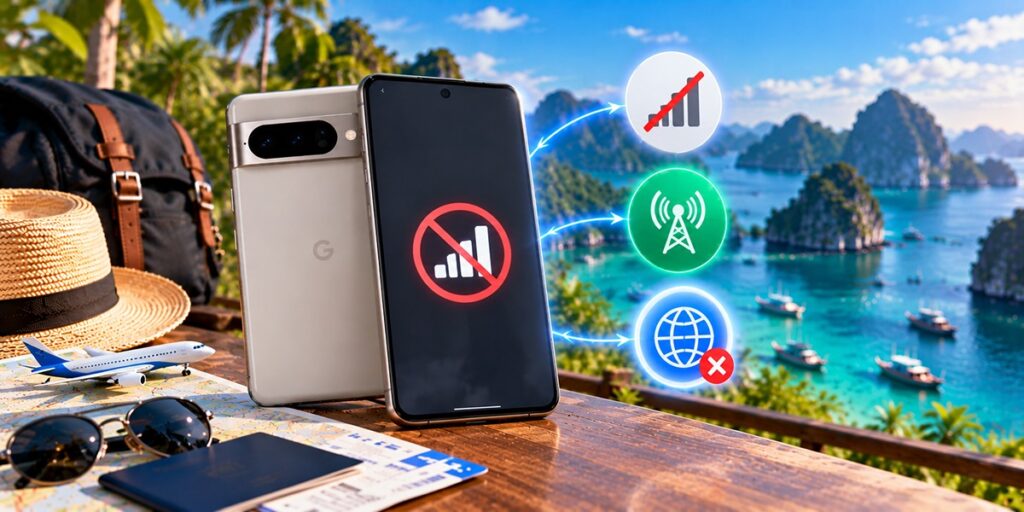
If the profile’s on the phone but nothing loads, it’s nearly always one of two things:
Roaming’s off. Open Settings → Network & internet → SIMs, tap the eSIM, and switch Data roaming on for that line. This is the usual culprit by a wide margin.
The wrong line’s set for data. Check that your AirHub eSIM — not your home SIM — is the one chosen as the mobile-data line.
Sorted through both and still stuck? Our guide on why is my eSIM not working picks up from there.
FAQs
1. Does the Google Pixel 7 Pro support eSIM?
Yes. Both the Pixel 7 Pro and the standard Pixel 7 support eSIM, with identical setup steps. You can confirm yours under Settings → Network & internet → SIMs → Add eSIM.
2. Can I keep my physical SIM while using an eSIM?
Yes — run both at once. Keep the physical SIM for its calls and texts, use the eSIM for data, and turn either off whenever it suits you.
3. Can the Pixel 7 Pro run two eSIMs at the same time?
Yes, carrier permitting — the Pixel 7 generation supports two active eSIM profiles at once. Both can handle calls and texts, but only one carries mobile data at a time.
4. Can I use my Pixel 7 Pro eSIM abroad?
That’s the whole point. Buy the eSIM before your trip, install it on Wi-Fi, and set it as your data line with roaming on — you’re connected the moment you land.
5. What if I delete the eSIM or lose my QR code?
With AirHub, your QR code and plan live in your account — log back in and reinstall, nothing lost.
6. Does eSIM work on the Pixel 7, or only the 7 Pro?
Both. The Pixel 7 and 7 Pro support eSIM and dual eSIM, and the setup is the same on each.
Leave a Reply