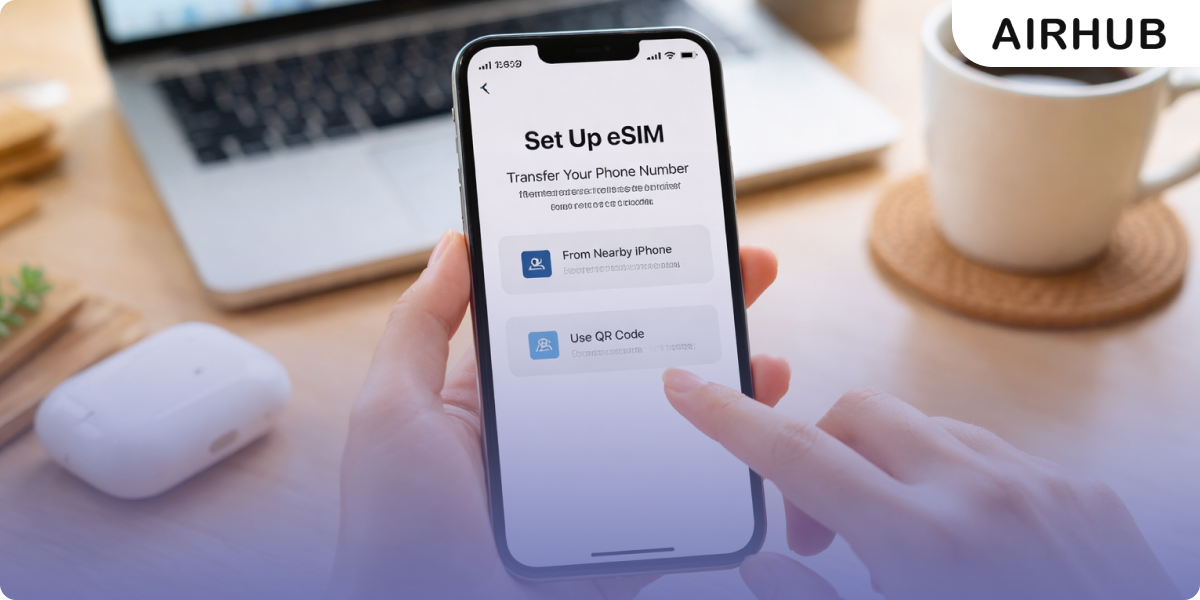
You’ve bought an eSIM plan, a QR code has landed in your inbox, and now you’re wondering what you’re actually meant to do with it. Here’s the reassuring part: iPhones make this about as painless as it gets genuinely faster than most Android phones and there’s more than one way in. This guide covers all of them: the classic QR scan, the newer one-tap trick on iOS 17.4, installing straight from an app, and manual entry for the odd case where none of those apply. Then we’ll get it switched on, running happily next to your home SIM, and troubleshoot the few things that trip people up.
Before You Start: A Quick Checklist
Thirty seconds of checking here saves a lot of head-scratching later. Three things to confirm before you install:
- Your iPhone supports eSIM. Anything from the iPhone XS or XR onward does — the 11 through 16 series, plus the SE (2nd and 3rd gen). Worth knowing: US iPhone 14 models and later are eSIM-only, with no physical tray at all. If you’re unsure, our eSIM compatible devices guide has the full list.
- Your iPhone is unlocked. A carrier-locked phone simply won’t add an eSIM you’ll need your carrier to unlock it first. To check, look under Settings → General → About for “No SIM restrictions.”
- You’re on the latest iOS and connected to Wi-Fi. Installing pulls down a profile, so you want a steady connection. Do it at home, not while fighting for airport Wi-Fi.
Which Install Method Should You Use?
There isn’t one single way to do this the right method just depends on how your provider handed you the eSIM:
- QR code — the standard route. Your provider emails a code and you scan it. Best when the code is on a second screen or a printout.
- One tap on iOS 17.4+ — if that code is in an email on the same iPhone, you can long-press it and add the eSIM without scanning anything. The fastest option by a mile.
- The provider’s app — bought through an app like Airhub’s? You can often install in a couple of taps, no QR involved.
- Manual or carrier activation — for when you were handed an activation code and SM-DP+ address instead of a QR, or your carrier pushes the plan to you automatically.
They all end in the same place a working eSIM. Just pick whichever matches what’s actually in front of you.
Install via QR Code
The one most people use. After you buy your plan, the QR code arrives by email or in the app. From there:
- Open Settings on your iPhone.
- Tap Cellular (or Mobile Data, depending on your region).
- Tap Add eSIM or Add Cellular Plan.
- Choose Use QR Code.
- Scan the QR code from your provider.
- Tap Continue and follow the prompts.
- Label the plan something like “Travel” or “Airhub” so it’s easy to tell apart from your main line.
- Choose whether it handles data, calls, or both.
- Tap Done.
Under two minutes, start to finish. One thing to keep in mind: a QR code can usually only be scanned once, so don’t share it around or try it on a second device.
Install with One Tap
Here’s the shortcut a lot of guides still haven’t caught up to. If your iPhone is on iOS 17.4 or later and the QR code is sitting in an email on that same phone, you can skip the camera entirely just press and hold the QR image in the email and tap Add eSIM when it pops up. iOS takes it from there and walks you through labeling the line. It’s the quickest way in, and a lifesaver when there’s no second screen to scan from.
Install Through the Provider’s App
If you bought your plan inside an app, this is often the least fiddly route of all nothing to scan. In the Airhub app, open your purchased plan and tap through the install prompt; the app passes the eSIM profile to iOS and you confirm a step or two.
It’s the one to reach for when you’re on the move and don’t fancy digging an email out of your inbox.
Install Without a QR Code (Carrier Activation or Manual)
No QR code in hand? Two more ways in.
Carrier activation is the automatic one, common with the big US carriers, where your iPhone just downloads the plan for you:
- Go to Settings → Cellular → Add eSIM.
- Tap Use Carrier Activation if it shows up.
- Let your iPhone find and download the plan.
- Follow the prompts to confirm.
Manual entry is for when you’ve been given an activation code rather than a QR:
- Go to Settings → Cellular → Add eSIM → Enter Details Manually.
- Type in the SM-DP+ address and activation code from your provider.
- Tap Next and finish up.
It’s the least-used method, but it’s the dependable fallback when scanning isn’t on the table say, when the details arrived as plain text instead of an image.
Activate Your eSIM
This is the bit that quietly trips up more people than anything else: installing an eSIM and activating it are two different things. Getting it onto your phone doesn’t switch it on you still have to turn the line on and point your data at it.
- Go to Settings → Cellular.
- Tap the eSIM plan you just added (it’s now listed among your lines).
- Toggle Turn On This Line to green.
- Scroll to Cellular Data and set your eSIM as the data source.
- Want to handle calls and texts too? Update your Default Voice Line to match.
- Turn on Data Roaming for the travel eSIM. In that eSIM’s settings, flip Data Roaming on most travel eSIMs need it to reach their partner networks abroad.
That last step deserves a word, because the name scares people off: switching Data Roaming on for your travel eSIM does not hand you a roaming bill from your home carrier. Those charges only ever come from your home line and once the eSIM is your data line with your home line’s data switched off, there’s simply nothing there to bill. It’s also the single most common reason a freshly installed eSIM sits there showing “no data,” so it’s the one step not to skip.
Newer to all this? Our plain English guide to what an eSIM is covers how it differs from a physical SIM.
Manage Multiple eSIMs (Dual SIM)
One of the quiet joys of an eSIM is that it lives alongside your home SIM or another eSIM so you’re carrying two numbers on one phone. iPhone 13 and later can store several eSIM profiles and keep two live at once. A few habits keep it tidy:
- Label every line. Settings → Cellular → tap the plan → give it a name like “Primary,” “Travel,” or “Airhub.” Future-you will be grateful.
- Make the eSIM your data line abroad. Under Cellular Data, pick the travel eSIM so you’re not quietly burning roaming on your home line.
- Think about Cellular Data Switching. It lets your iPhone fall back to the other line if one drops data genuinely useful if both lines carry a plan, but leave it off if the other line would rack up charges.
It’s the setup seasoned travelers swear by: home number still ringing for calls, travel eSIM doing the heavy lifting on data. Airhub eSIMs slot into this dual-SIM mode with instant activation.
When to Install vs When to Activate
Here’s a small habit that quietly saves you plan days: install early, activate late. Get the eSIM installed at home while you’ve got solid Wi-Fi even a few days ahead is fine, since installing alone doesn’t start the meter. What you hold off on is turning the line on and setting it as your data source, because some plans start counting from first use or first network connection. So install now, flip it on when you land.
Troubleshooting: Common Issues and Fixes
Most installs go off without a hitch. When one doesn’t, it’s nearly always one of these five:
- The QR code won’t scan. Clean the camera, get some light on it, and hold the code 20–30 cm away. Still nothing? Switch to the manual method or ask your provider to resend the code.
- Installed, but no data. Check two things, in this order. First and this is the usual culprit make sure Data Roaming is on for the travel eSIM (see the activation step above). Second, confirm the eSIM is set as your active data line under Cellular Data. If both are right and you’re still offline, ask your provider to confirm it’s live on their end.
- “Add eSIM” is greyed out. That’s a carrier-locked iPhone. You’ll need your primary carrier to unlock it before you can add anything.
- Only one eSIM shows. On older models (iPhone XS through 12), you get one eSIM plus one physical SIM active at a time. From the iPhone 13 on, you can hold several eSIM profiles.
- eSIM disappeared after an iOS update. Rare, but it does happen just re-scan the QR code or re-enter the activation details. Since most codes expire after the first install, if yours won’t take again your provider can usually reissue it.
Why Travelers Switch to eSIM Before Every Trip
The old arrival ritual hunt down a kiosk, join the queue, hope the SIM actually works is quietly going extinct, and honestly, good riddance. An eSIM erases every step of it. With Airhub, you can buy an eSIM plan online in minutes and land already covered across 190+ countries on major local and global networks.
Sort it before you fly, using the steps above, and your connection is handled before the wheels even touch the tarmac nothing to buy at the airport, nothing to swap.
FAQs
1. How do I install an eSIM on my iPhone?
Go to Settings → Cellular → Add eSIM → Use QR Code, then scan the code from your provider and follow the prompts. On iOS 17.4 or later, you can instead long-press the QR code in an email to add it in a single tap. Either way it takes under two minutes.
2. Why does my eSIM say no data after installing?
Almost always because Data Roaming is off, or the eSIM isn’t set as your active data line. In the eSIM’s settings, turn Data Roaming on (this won’t cause home-carrier charges), then under Cellular Data select the eSIM as your data source. If it still won’t connect, check with your provider that the plan is active on their side.
3. Can I have two eSIMs active at the same time on an iPhone?
Yes. iPhone 13 and later support dual eSIM two lines running at once. Most travelers keep their home number live for calls and let a travel eSIM handle the data.
4. How do I install an eSIM without a QR code?
Use carrier activation (automatic) or manual entry: Settings → Cellular → Add eSIM → Enter Details Manually, then type in the SM-DP+ address and activation code your provider gave you.
5. When should I install my travel eSIM?
Install it at home on Wi-Fi before you leave installing doesn’t use data or start most plans. Hold off on turning the line on and setting it as your data source until you arrive, since some plans begin counting from first use.
6. Does Airhub eSIM work on all iPhones?
It works on any eSIM Compatible iPhone anything from the iPhone XS onward. Just make sure the phone is unlocked before you set it up.
Leave a Reply