Are you using an iPhone and making it much more efficient? Then you must be wondering: what are some cool iPhone tricks hidden in settings? It’s full of nifty hacks. This guide covers 20 key iPhone tips, camera tricks, battery savers, privacy tools, and connectivity tips with friendly iPhone hacks to get more out of your iPhone.
Snap to It: Picture-Perfect Shots
The iPhone camera is great, but a few tweaks help a lot. There are many secret iPhone tricks that you can apply to get your perfect shot, like:
1. Tap-Tap! Quick Shortcuts:
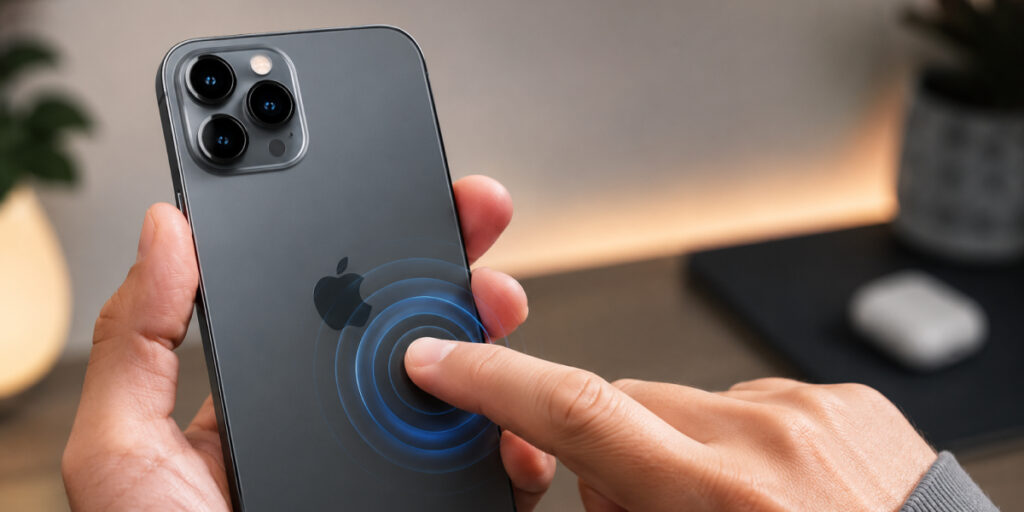
Enable Back Tap (Settings > Accessibility > Touch) to use double- or triple-taps on the back of your iPhone (models 8+). For example, double-tap to open Control Center or take a screenshot. It’s like a secret gesture – tap and your preset action runs instantly.
2. Text from Pictures:
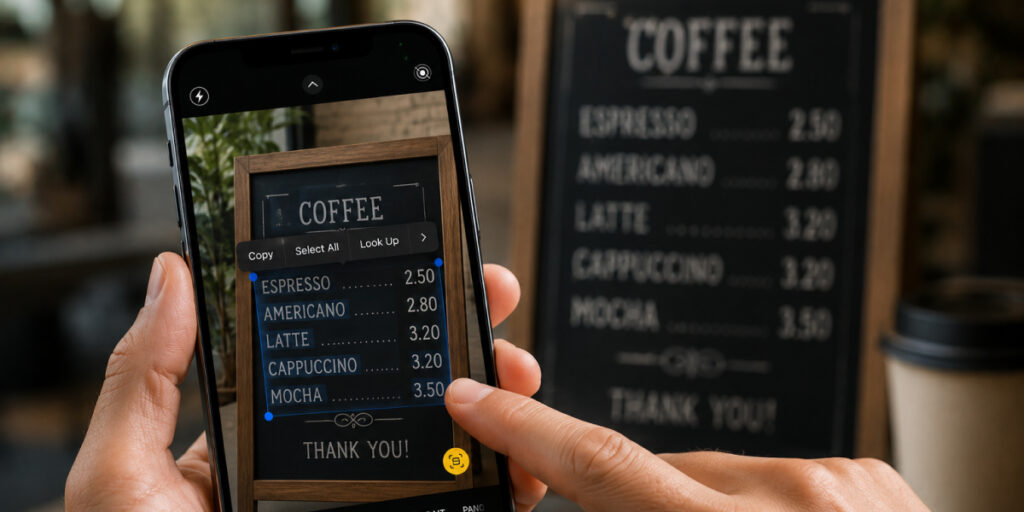
Live Text (iOS 15+) grabs text from images. When you see text in a photo or camera (signs, menus, etc.), tap it as if it were normal text. Now you can copy, look up, or translate it. Handy for copying notes from an image.
3. Visual Look Up:
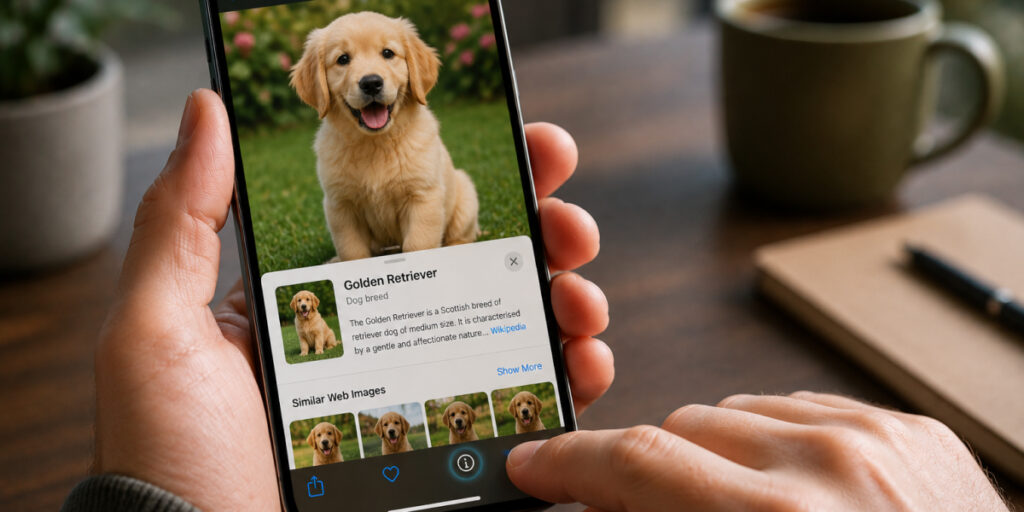
Open a photo and tap the info button (ⓘ). If Apple recognizes something (plant, pet, landmark, etc.), Visual Look Up shows info about it. It even suggests recipes for foods in photos. Use it on any picture to discover more about what’s in the shot.
4. Stylize Your Shots:
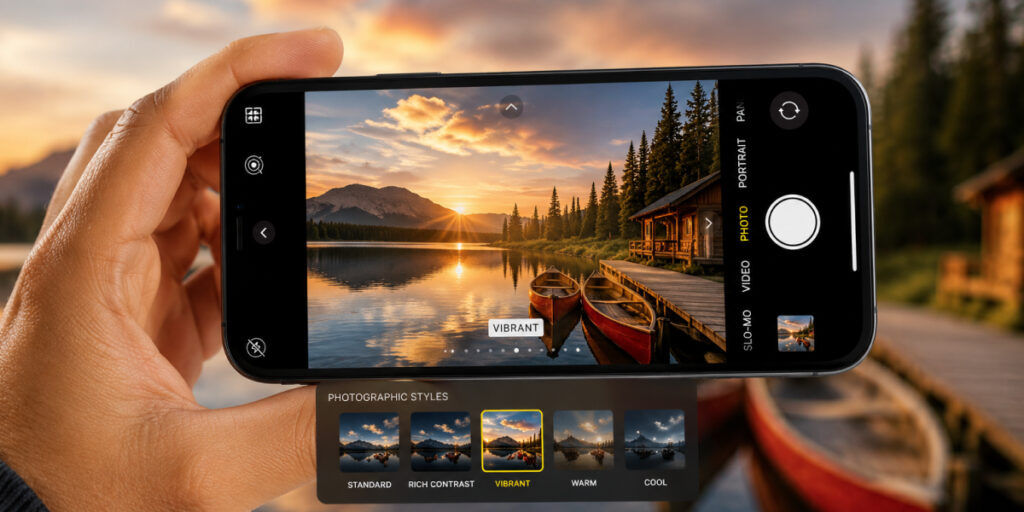
Give your photos a consistent tone with Photographic Styles (Camera app, tap ^ > Styles). Pick Standard, Rich Contrast, Vibrant, etc., then swipe to apply. It sets the style as you shoot, and you can tweak it later in Photos. Better than filters, it keeps skin tones natural.
5. Secret Album:
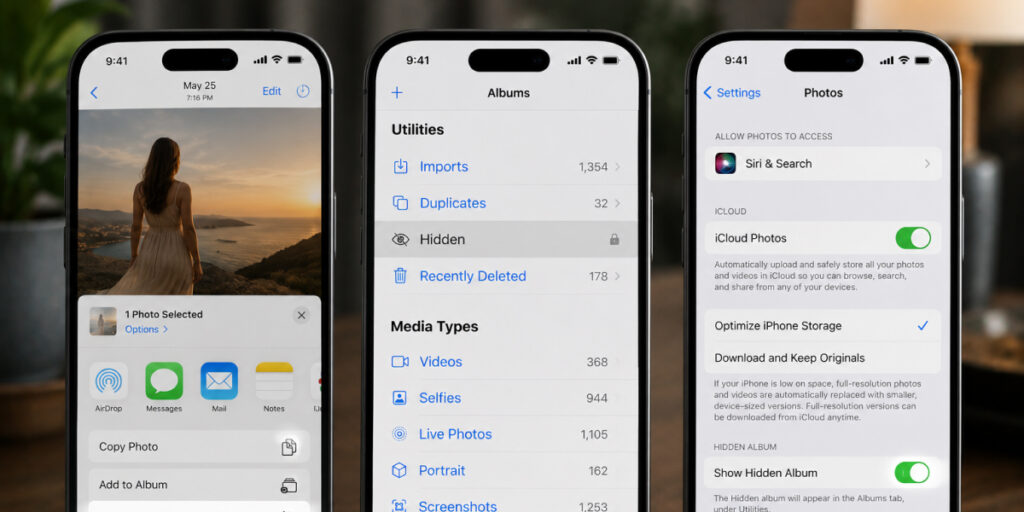
Keep private photos out of view. In Photos, select an image, tap Share, and choose Hide – it moves to the Hidden album. On iOS 16+, go to Settings > Photos and disable Show Hidden Album to lock it (Face ID needed to unlock). Now your secret pics really stay hidden.
Stay Connected: Network Tips
Are you struggling because of bad connectivity in your iPhone? Here are a few hacks that you can apply:
6. Dual SIM & eSIM:
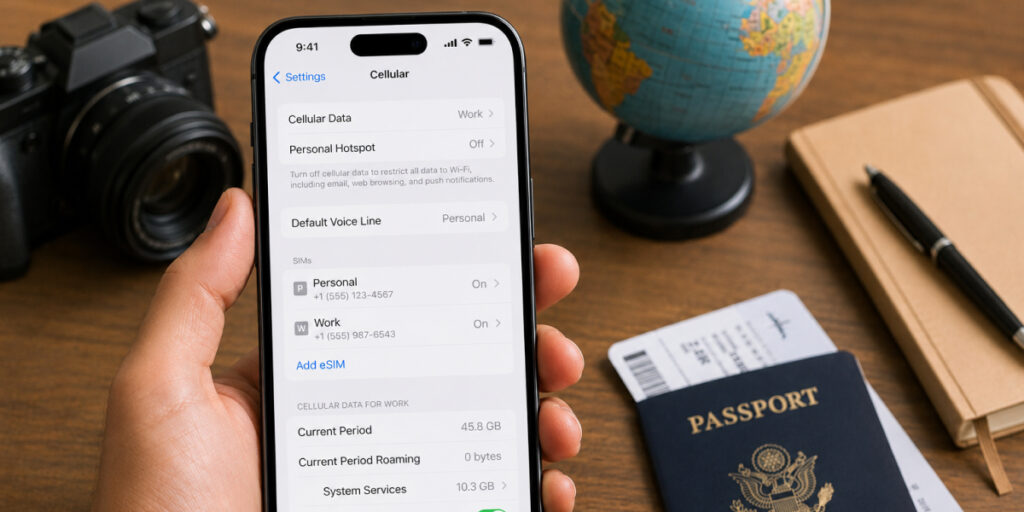
Most iPhones support eSIM, so set up eSIM on iPhone. In Settings > Cellular > Add eSIM, install a data plan without a SIM card. You can have two numbers (label them Personal/Work). Pick one for calls and one for data. Travelling? Download a local plan before you land, no SIM swap needed.
7. Verify IMEI Number:
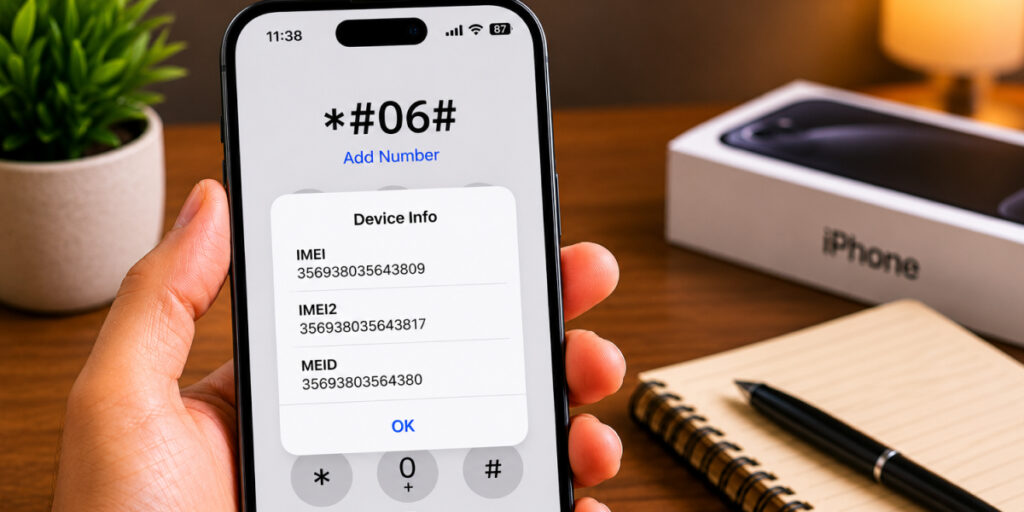
Are you wondering how to check the IMEI Number on an iPhone? You can also check your IMEI by dialing *#06# on your phone.
8. Use AirDrop:
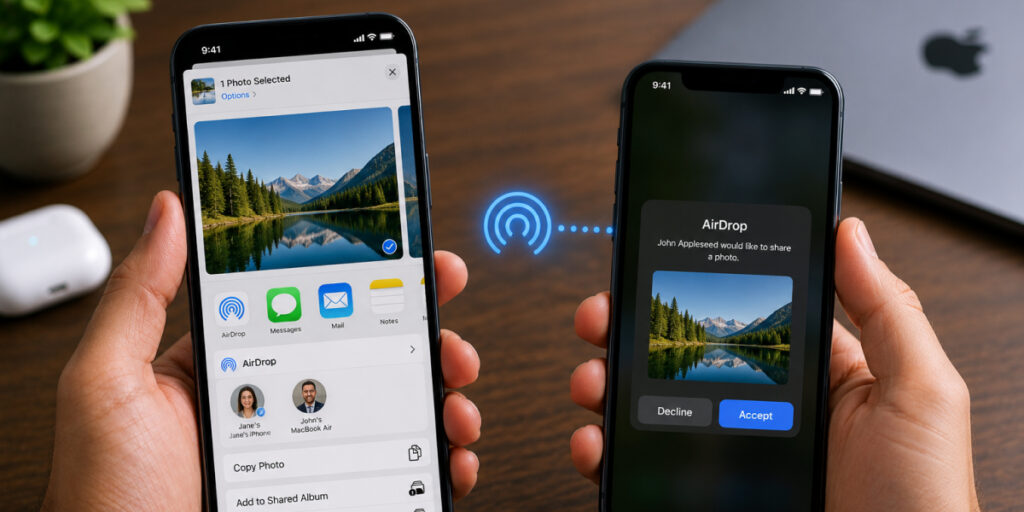
For transferring files or pictures to another device close to you for file or pictures transfer, using AirDrop is better. Please confirm the Bluetooth/WiFi of each device is turned on, hit the Share button on the item you want to send, tap on AirDrop, then tap on the recipient’s name. When they accept their transfer, your file will be transferred instantly.
9. Share Wi-Fi Passwords Easily:
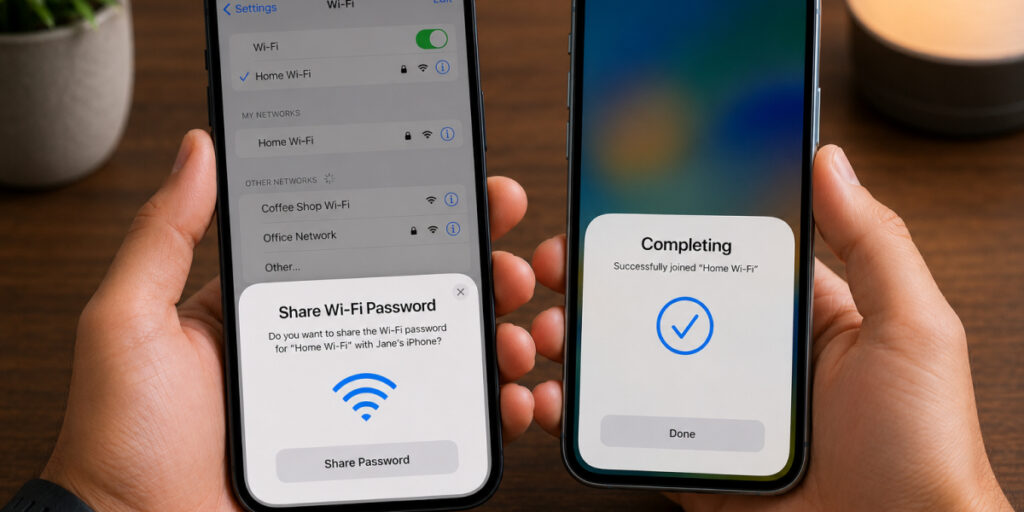
To share your Wi-Fi password, bring two iPhones close together with Bluetooth on. On the new phone, tap your network. On your main iPhone, a pop-up appears: tap Share Password. The second iPhone joins automatically. It’s a quick way to get guests or new devices online.
Power & Speed: Battery Performance
Are you looking for hidden iPhone hacks to save your battery performance? Here is all that you need to run your iPhone with great power and speed without draining:
10. Smart Charging:
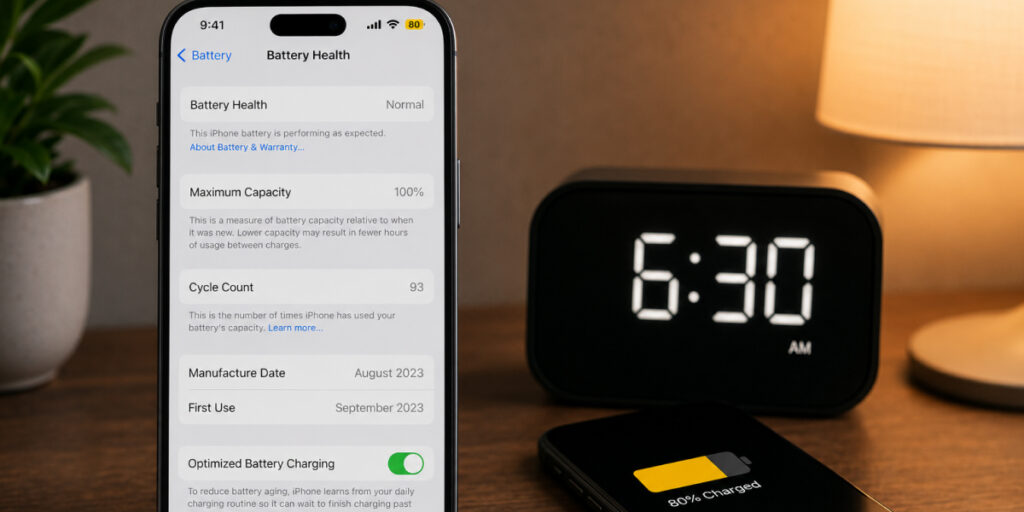
Enable Optimized Battery Charging (Settings > Battery > Battery Health). It learns your routine and holds charging at 80% until just before you need it. This reduces battery wear. Keep it on, you’ll see the battery icon turn yellow when it pauses charging.
11. Low Power Mode:
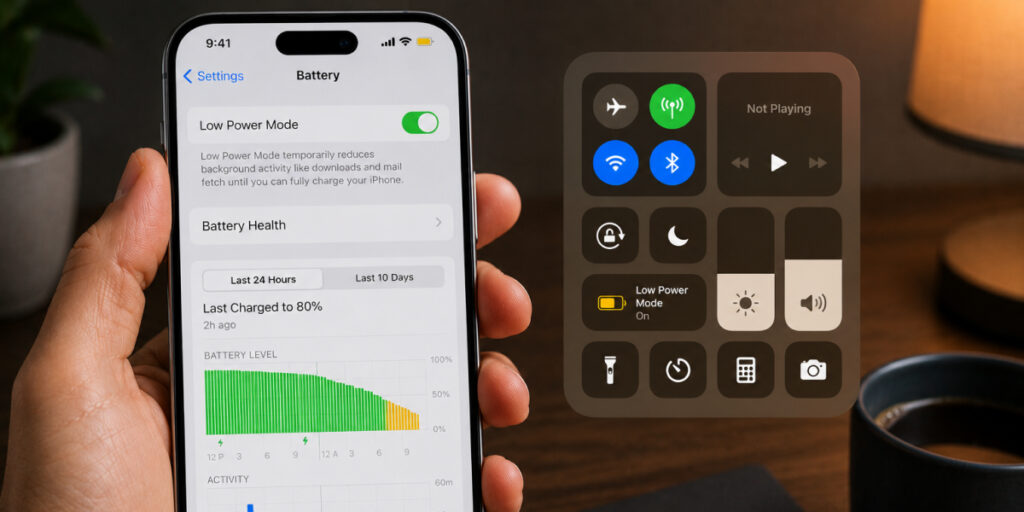
When the battery is low, turn on Low Power Mode (Settings > Battery or Control Center). It dims the display, pauses some background tasks, and slows the CPU a bit. The battery icon turns yellow. This gives you extra minutes until you can charge, handy in a pinch. You can also turn on Low Data Mode on your iPhone to save more power and data.
12. Background Updates:
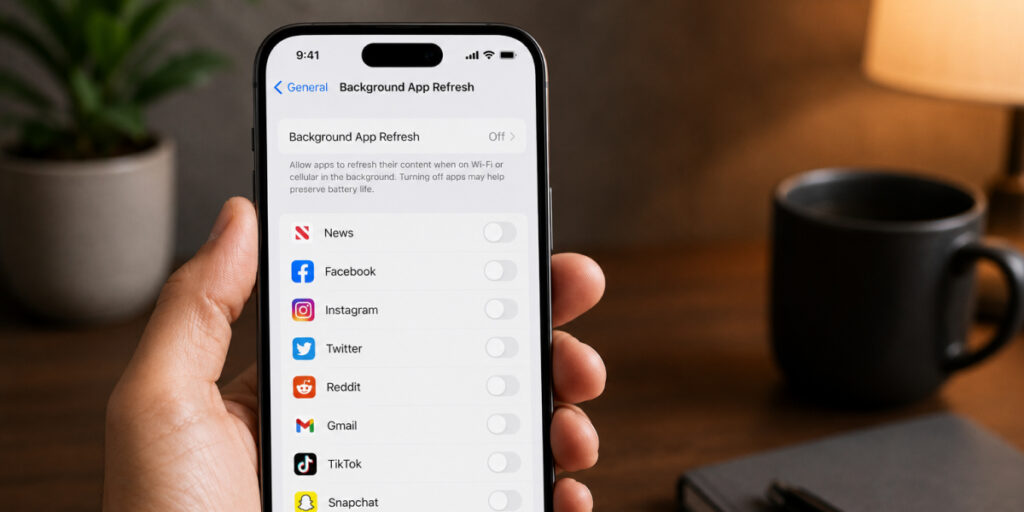
Apps like news or social media often refresh in the background. Go to Settings > General > Background App Refresh and turn off those you don’t need. Now they only update when you open them. It’s an easy way to save power and avoid surprise data use.
13. Battery Health:
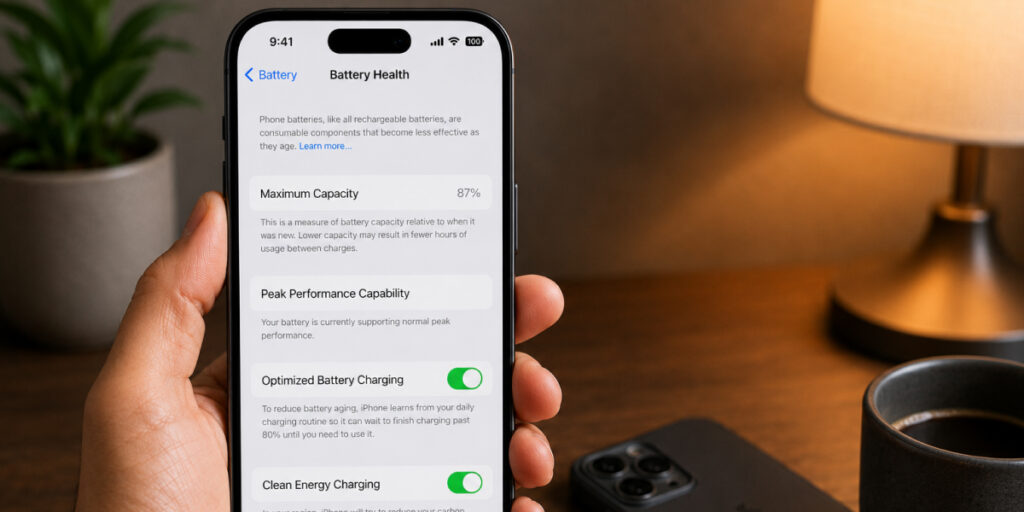
Go to Settings > Battery > Battery Health. This shows your battery’s maximum capacity. If it’s worn (below ~80%), your iPhone might run slower or suggest a replacement. It’s a quick health check if your phone feels sluggish.
14. Smoother Experience:
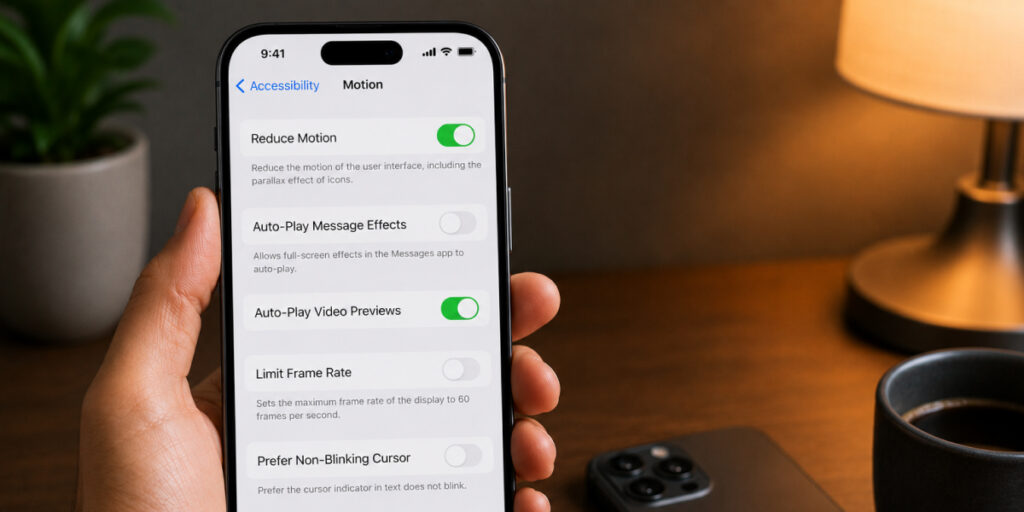
Want a snappier interface? Turn on Reduce Motion (Settings > Accessibility > Motion). It removes many animations and effects. Your iPhone will feel quicker and use a bit less graphics power.
Privacy & Security: Keep Data Safe
Are you concerned about your privacy and want special assistance, like some iPhone message tricks? Here is all that you need:
15. Face ID & App Lock:
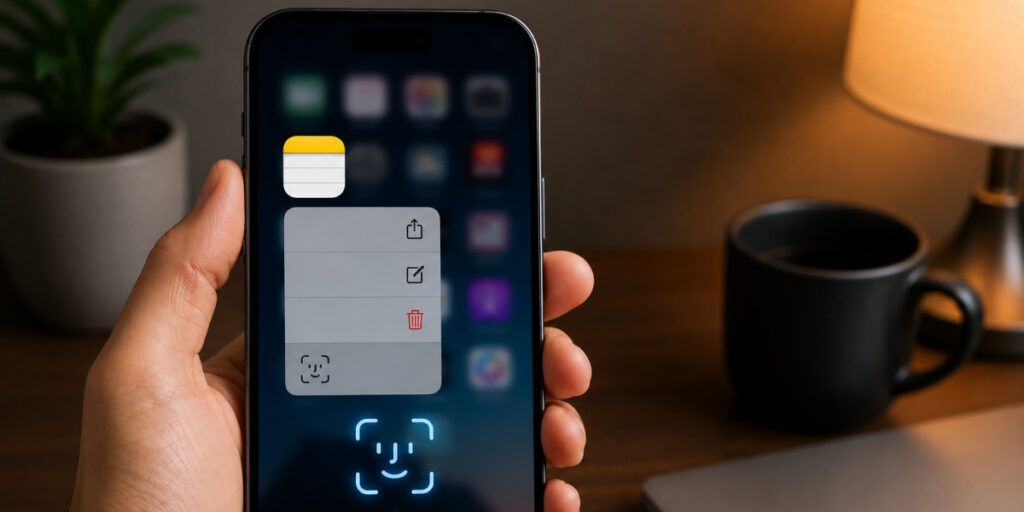
Lock apps behind Face ID (iOS 18+). Long-press an app icon and tap Require Face ID. Now that the app (e.g., Notes, Mail) needs your face to open. The Hidden album in Photos is also Face ID-locked on the new iOS. It’s a quick way to keep snoopers out.
16. Stop Trackers:
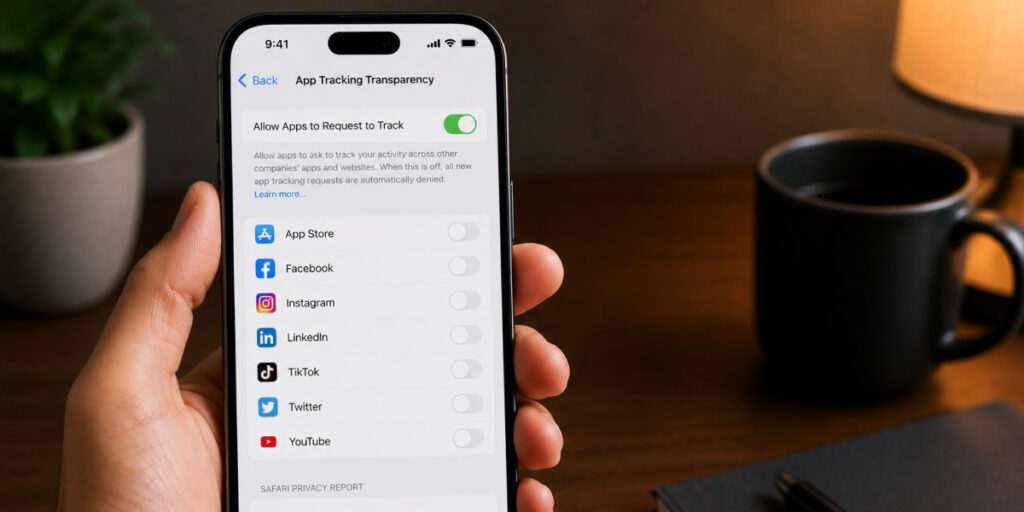
Apps must ask to track you now (iOS 14.5+). When prompted, tap Ask App Not to Track to block it. In Settings > Privacy, you can review permissions. Safari’s Privacy Report shows which sites tried trackers.
17. Hide My Email:
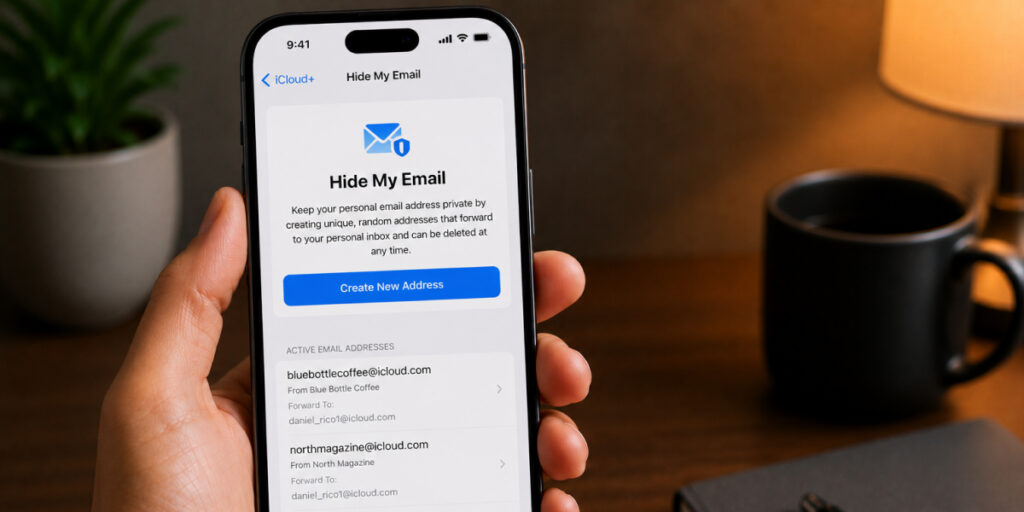
Use Hide My Email (an iCloud+ feature) to create random aliases when signing up. iPhone generates an address (like xyz@icloud.com) that forwards to you. If that alias gets spam, delete it. Your real email stays private.
18. Keychain Passwords:
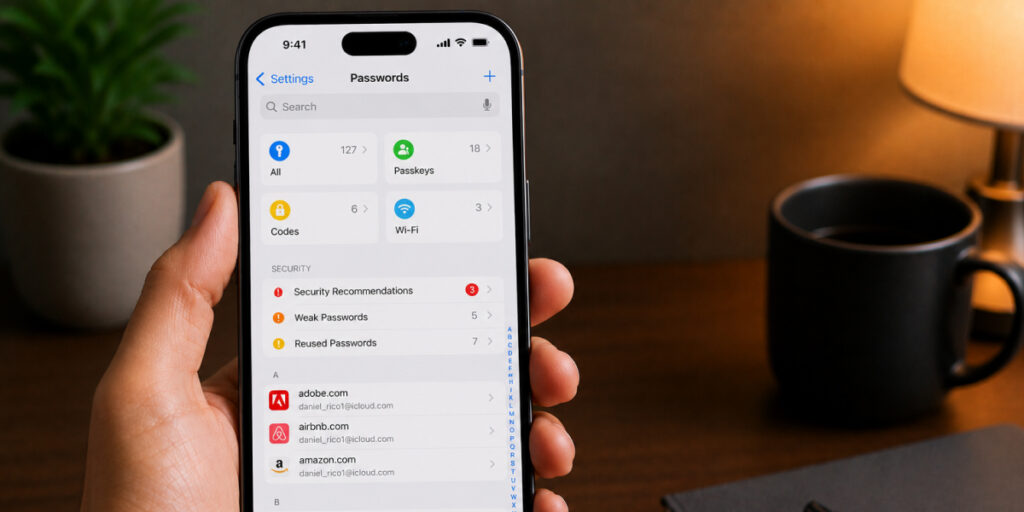
Settings > Passwords shows saved logins (Face ID required). iPhone can suggest strong passwords when creating accounts and flags weak or reused ones. Using AutoFill, you never have to type them out. It’s a secure vault for all your credentials.
Work Smart: Productivity Hacks
Are you more worried about your productivity? These iPhone hacks will definitely help you achieve your goals in a better way:
19. Dismiss Distracting Notifications:

Focus (Settings > Focus) replaces Do Not Disturb. Set work, sleep, or drive modes where notifications are blocked. Choose who and which apps can notify you. You can also schedule this.
20. Use Siri:
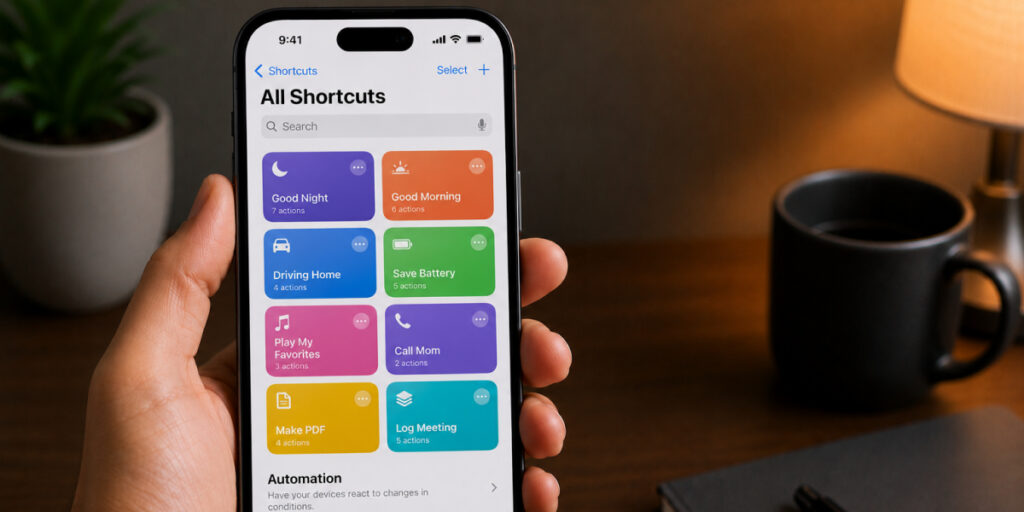
Use the Shortcuts app to combine actions. Create shortcuts for things you do often, and run them with a tap or Siri phrase. You can also set automations (time, location, etc.) to run tasks. It’s like programming your phone to handle chores.
Airhub eSIM: Travel Data Made Easy
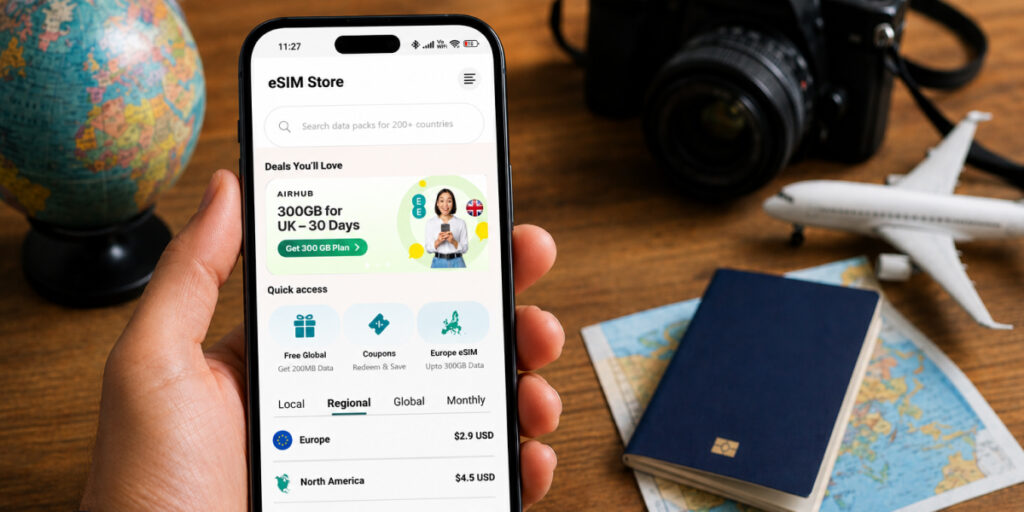
If you travel a lot and want to buy an eSIM online, try Airhub’s eSIM app. It offers data plans in 190+ countries with no roaming surprises. Download it, pick a plan, and activate. It’s a convenient way to stay online on your iPhone worldwide.
Now You can Use Your iPhone with More Efficiency!
That’s a tour of useful iPhone tips and tricks. We covered camera hacks, privacy safeguards, battery savers, and more. Try some of these and customize your iPhone to really fit your life. It will help you run your iPhone smoothly with much more efficiency. Enjoy discovering your phone’s hidden powers!
FAQs
1. When did the iPhone come out?
Are you wondering: When was the iPhone first launched? The first iPhone was announced in January 2007 and released in June 2007. It kick-started the modern smartphone era.
2. How do I share a Wi-Fi password between iPhones?
On the new iPhone, tap the network in Settings > Wi-Fi. On your main iPhone, a pop-up appears: tap Share Password. The other iPhone connects automatically.
3. What is Live Text on iPhone?
Live Text (iOS 15+) recognizes text in photos. Tap the text in an image to copy, look up, or translate it as if it were typed. It turns a picture of words into editable text.
4. What is Focus mode on the iPhone?
Focus (in Settings) lets you limit notifications by context (Work, Sleep, Driving, etc.). You pick which people/apps can alert you. When it’s on, only those selected contacts/apps notify you.
Leave a Reply