Everyone does it on autopilot. The cabin door thunks shut, a flight attendant asks you to switch to airplane mode, and you tap the little plane icon without a second thought. But it’s worth asking what that tap actually does — because most of what people believe about airplane mode is a mix of half-truth and outright myth. At its simplest, it’s one setting that switches off your phone’s wireless radios — cellular, Wi-Fi, Bluetooth — so the device stops sending and receiving signals. Handy on a flight, sure. But it’s just as useful on the ground for stretching a dying battery, silencing the world for an hour, or dodging a nasty roaming bill. Here’s what it really does, why it exists (there are two reasons, and most people only know one), and the couple of things nearly everyone gets wrong.
What Does Airplane Mode Do?
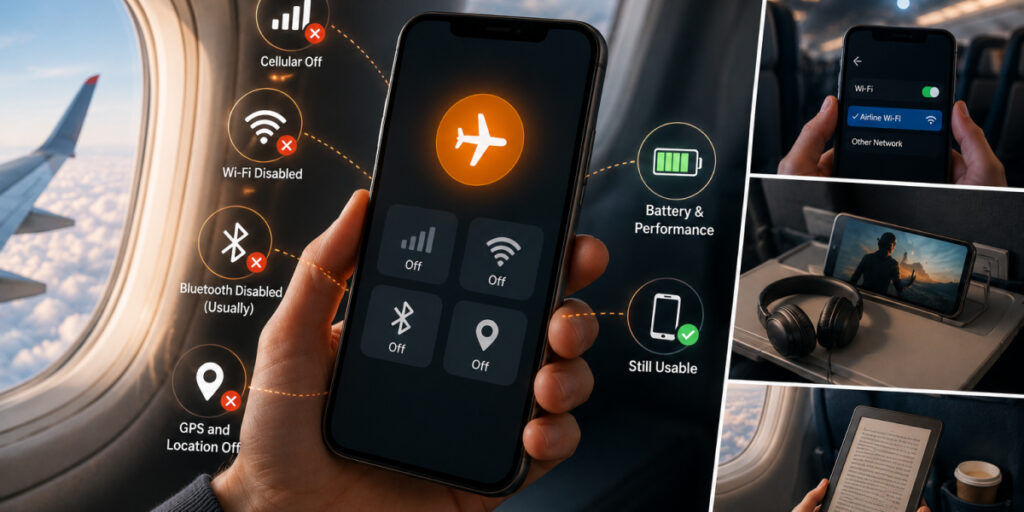
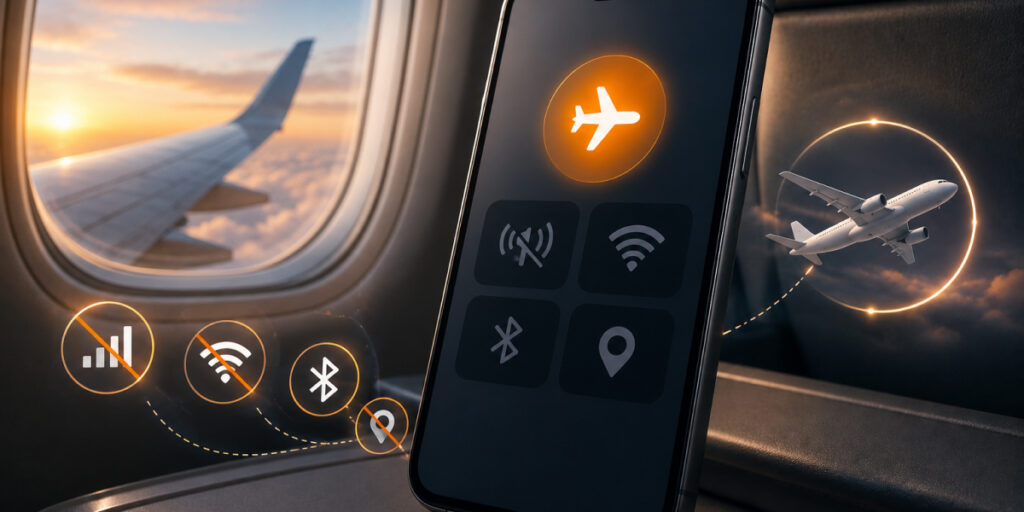
Think of it as a master off-switch for your phone’s wireless radios. Flip it on and the phone drops its cellular connection, disconnects from Wi-Fi, and cuts Bluetooth — which is why the signal bars vanish and that little plane appears up top. The phone goes quiet: no calls, no texts, no mobile data.
What it doesn’t do is turn your phone into a paperweight. Here’s the quick split of what stops and what keeps humming along:
| What stops | What still works |
| Cellular calls, texts, and mobile data | Offline apps, games, and notes |
| Wi-Fi (until you switch it back on) | Downloaded music, videos, and e-books |
| Bluetooth (until you switch it back on) | Your camera and photos |
| Automatic roaming abroad | Offline maps (and often GPS — more below) |
The short version: airplane mode cuts the phone off from networks, and everything that doesn’t need a network just carries on.
Why Does Airplane Mode Exist?
Almost everyone knows the first reason. Almost nobody knows the second — which is a shame, because the second is arguably the more real of the two.
The first is interference. Your phone’s radios throw out signals that could, in theory, nudge a plane’s navigation or communication gear. In practice, a modern airliner isn’t going to drop out of the sky because someone left their phone on — but with a whole cabin of devices, airlines and regulators sensibly err on the side of caution.
The second is the one that actually bites: overloading the cell towers on the ground. Picture a plane climbing or descending fast with a few hundred phones on board, every one of them straining to grab a signal and leaping from tower to tower far quicker than those towers were built to handle. That churn can genuinely disrupt service for people below — and it’s a big part of why the rule exists in the first place.
In the US, keeping devices in airplane mode during a flight is tied to FCC and FAA rules, not just airline preference.
Does GPS Still Work in Airplane Mode?
Here’s the big one to unlearn: GPS often keeps working in airplane mode. The reason is that GPS is a receive-only technology — your phone quietly listens for satellite signals but never transmits anything back — so it isn’t the sort of radio airplane mode is built to silence.
The full picture is a little more nuanced. What airplane mode switches off is the cellular and Wi-Fi side of location — the part that assists and speeds up a fix (the “A” in A-GPS, if you like). The GPS chip itself can still lock on, which is exactly why you can open an offline map mid-flight and watch your little blue dot crawl across the map at 35,000 feet. It varies by phone and app, but the blanket claim that “airplane mode kills GPS” simply isn’t true.
Is Airplane Mode Really Necessary?
Fair question — and the honest answer comes in two halves. The pure interference risk to a modern jet is low; no single phone is bringing down an aircraft. But airplane mode isn’t an old superstition, either. It’s a genuine, regulation-backed requirement, and that second reason — the tower-overload problem — is a real, practical headache that has nothing to do with dramatic movie-style interference. So: low drama, real reason, still mandatory. When the crew asks, flip it on. It costs you a second and keeps you on the right side of the rules.
When to Use Airplane Mode
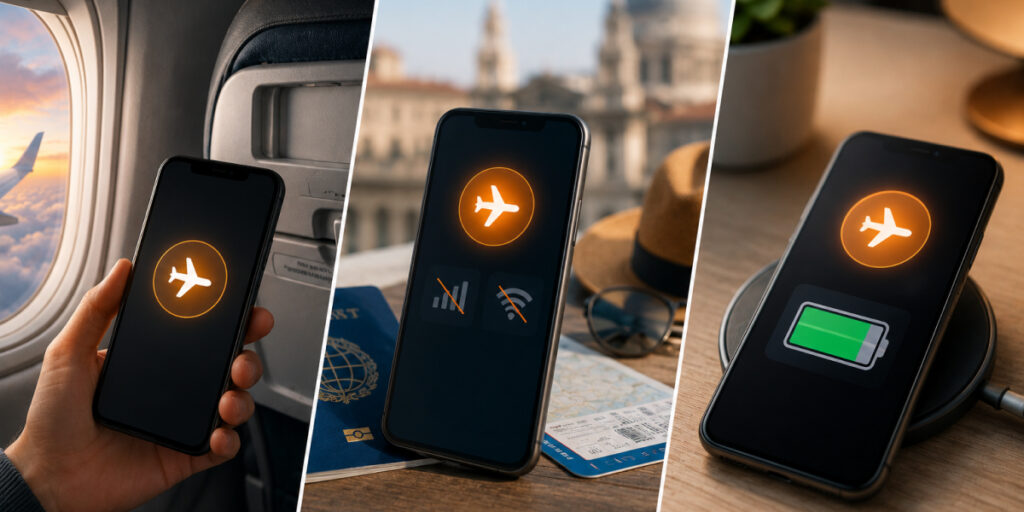
The name undersells it — airplane mode earns its keep well beyond the departure gate:
- On flights — the obvious one, and required on essentially every commercial route.
- To dodge roaming charges abroad — flip it on the moment you land and your phone can’t quietly latch onto a pricey foreign network before you’ve sorted a proper data plan.
- To save battery — with the radios off, the phone stops endlessly hunting for a signal, which stretches a low battery noticeably further. Apple itself notes airplane mode can help conserve power.
- To focus — want an uninterrupted hour? It’s the fastest way to go genuinely offline without powering the whole phone down.
Wi-Fi and Bluetooth in Airplane Mode
A stubborn myth says airplane mode locks you out of Wi-Fi and Bluetooth for the whole flight. It doesn’t. On just about any modern phone you can switch Wi-Fi and Bluetooth back on by hand while airplane mode stays active — the cellular radio stays off, but your wireless earbuds and the in-flight Wi-Fi are fair game.
Do planes have Wi-Fi? More and more, yes — most major airlines now offer it. The usual dance: turn on airplane mode for takeoff, then once the crew gives the nod, switch Wi-Fi back on and join the plane’s network (often for a fee, sometimes free with the right plan). For the full picture of what to expect up there, see our guide on whether Do Planes Have Wi-Fi.
How to Turn Airplane Mode On and Off
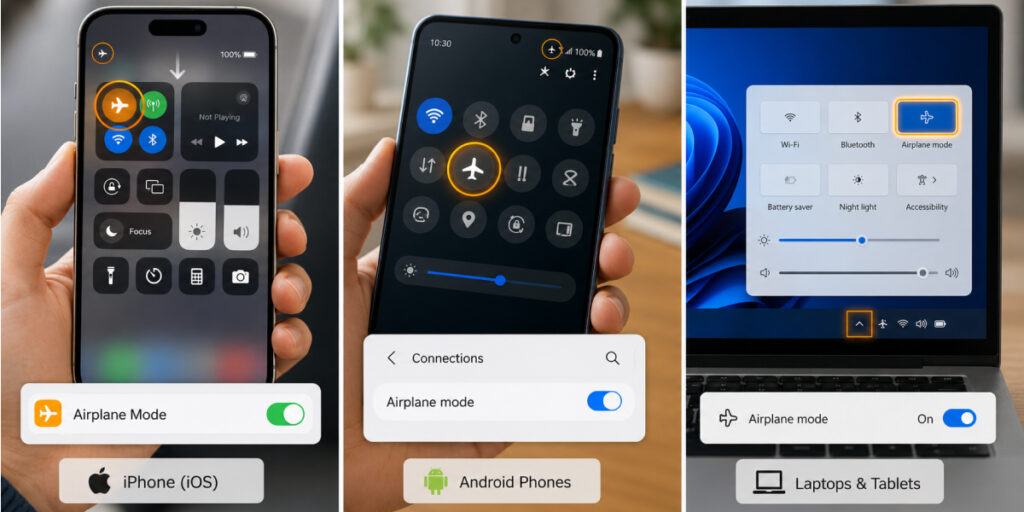
It takes seconds on any device:
- iPhone: open Control Center (swipe down from the top-right, or up from the bottom on older models) and tap the airplane icon — or find the toggle in Settings. The plane icon shows up in the status bar.
- Android: swipe down for Quick Settings and tap the airplane icon. Not there? It lives under Settings → Network/Connections (some phones call it “Flight Mode”).
- Laptops and tablets: Windows and Mac both keep an airplane-mode toggle in their network settings to kill all the radios at once.
Turning it off is the same in reverse — tap the icon again and your bars reappear, or flip the toggle in Settings. If a phone ever seems stuck in airplane mode, a quick restart almost always shakes it loose. One easy thing to forget: once airplane mode is off, you may still need to switch any Wi-Fi or Bluetooth you’d turned on separately back on yourself.
Do eSIMs Work in Airplane Mode?
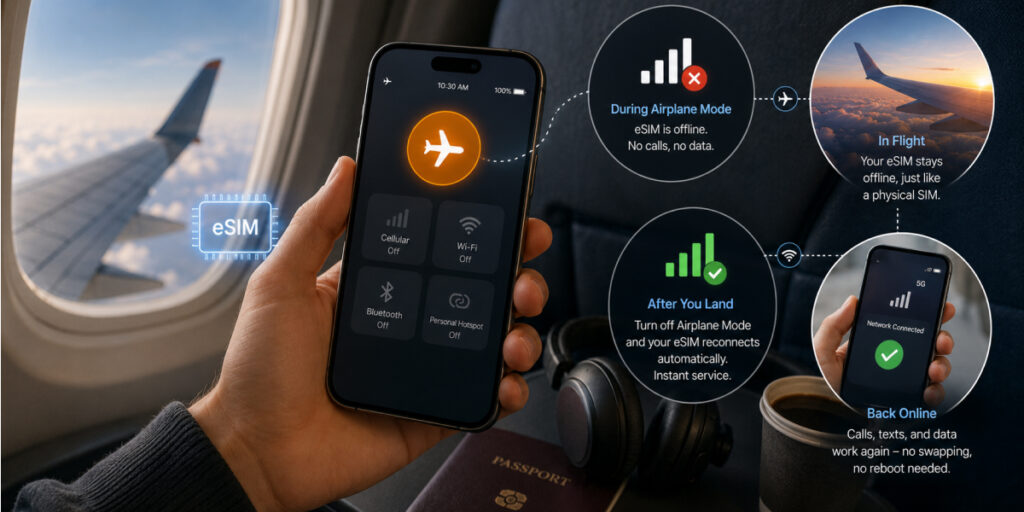
Travel on an eSIM and here’s the reassuring part: airplane mode treats an eSIM exactly like a physical SIM. Switch it on and your eSIM’s data and calls cut out just the same — in the air, it’s offline like any other line. Land, switch airplane mode off, and the eSIM reconnects on its own. No card to swap, no reboot, no fiddling.
That’s a big part of why eSIMs suit travelers so well: there’s no fiddly plastic chip to lose, and your service snaps back the instant you’re cleared to go online. So no, an eSIM doesn’t run cellular during airplane mode — nothing does — but it comes right back to life the second you switch the mode off.
Staying Connected After You Land
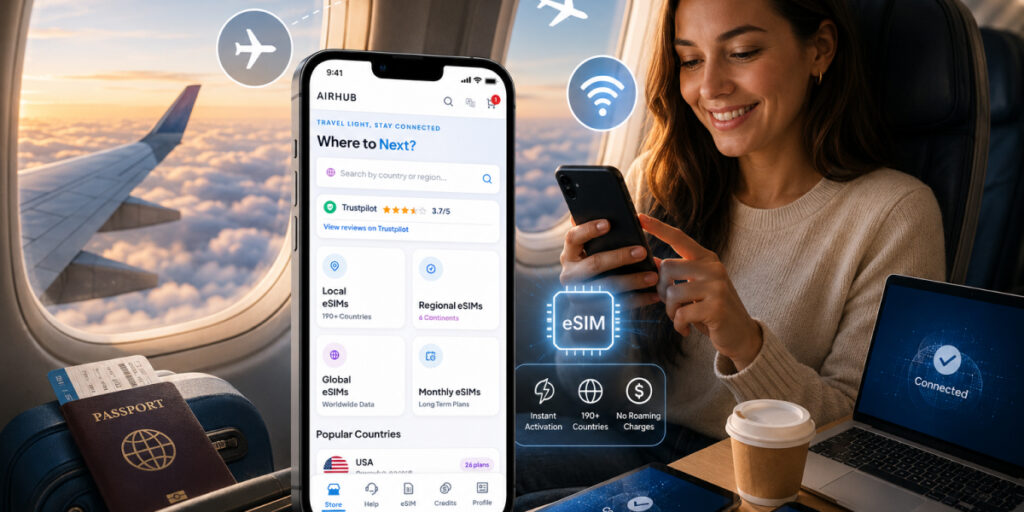
Airplane mode handles the flight; the real trick is getting back online without a headache once you’re on the ground. Instead of switching it off straight into a wall of roaming charges, plenty of travelers now land with a travel eSIM already loaded and waiting. With Airhub, you can set up esim data plans across 190+ countries before you even fly, so you’re connected the moment airplane mode comes off — no SIM swap, no bill-shock. You can buy a prepaid esim in a couple of minutes and have it ready before wheels-up.
FAQs
1. What is airplane mode?
It’s a setting on phones, tablets, and laptops that switches off the device’s wireless radios — cellular, Wi-Fi, and Bluetooth — so it can’t send or receive signals. The phone stays fully usable for offline tasks; it just can’t reach any network until you switch the mode off (or turn Wi-Fi/Bluetooth back on by hand).
2. Does GPS work in airplane mode?
Often, yes. GPS is receive-only, so it isn’t the kind of radio airplane mode silences — you can frequently still use offline maps to track where you are. What gets switched off is the cellular/Wi-Fi signal that assists and speeds up location fixes.
3. Does airplane mode save battery?
It does. With the radios off, your phone stops constantly searching for and holding network connections, which draws noticeably less power — a genuine help when the battery’s low and there’s no charger in reach.
4. Can I use Wi-Fi or Bluetooth on a plane?
Usually. On most modern phones you can switch Wi-Fi and Bluetooth back on while airplane mode stays active — so in-flight Wi-Fi and wireless earbuds both work. Check the airline’s rules, but short-range Bluetooth and in-flight Wi-Fi are generally fine.
5. Is airplane mode only for flights?
Not at all. Despite the name, it’s useful anytime — to save battery, cut distractions, or stop your phone jumping onto expensive roaming networks the second you land somewhere new.
6. What happens if I don’t use airplane mode on a flight?
Your phone keeps chasing a signal it can’t hold at altitude, which drains the battery, and it may breach airline rules. The bigger practical issue is all those devices straining to reach ground towers at once — part of why the rule exists in the first place.
Leave a Reply