Quick answer: Nine times out of ten, an eSIM that won’t work comes down to one of five things: data roaming switched off, the eSIM not selected as your data line, a missing or wrong APN, a carrier-locked phone, or an activation step that simply hasn’t finished yet. Start there. Confirm your eSIM is installed and enabled, set as your data line, and that roaming is turned on if your plan needs it — those three checks alone clear up a surprising share of eSIM problems. Still stuck? The sections below cover everything else, including “No Service,” “Unable to Activate,” an eSIM that vanishes after a software update, and separate walkthroughs for iPhone and Android.
Here’s the thing about eSIM issues that’s easy to miss: they’re almost never caused by the eSIM itself failing. There’s no physical card to damage, crack, or leave in last year’s jacket. So when something goes wrong, it’s nearly always a setting, an activation step that didn’t fully complete, or the network you happen to be standing near — not a defect. That’s actually good news, because it means most of these problems can be diagnosed and solved without any special tools. You just need to work through the right checks in the right order, which is exactly what this guide does.
New to eSIM technology altogether? Our guide on what an eSIM actually is covers the basics before you dive into troubleshooting.
Quick Diagnostic Checklist
Run through this before anything else. It takes under a minute and rules out the most common culprits first.
| Check | Why it matters |
| Your phone supports eSIM | Some devices and device variants don’t support eSIM at all — see Is My Phone eSIM Compatible to confirm yours does |
| Your phone is carrier-unlocked | A locked phone can refuse a third-party or travel eSIM regardless of other settings |
| The eSIM is actually installed | Confirms the profile downloaded, not just that you scanned a QR code |
| The eSIM line is switched on | A profile can be installed but still toggled off |
| The eSIM is set as your mobile data line | On a dual-SIM phone, data only flows through whichever line is selected |
| Data roaming is on, if your plan requires it | One of the most frequently missed steps for travel eSIMs |
| Your plan is active | Buying a plan and activating it aren’t always the same moment |
| You have data remaining | A used-up allowance can look identical to a connection problem |
| You’re on a supported network | Full signal bars don’t guarantee your plan works on that specific network |
| You have any signal at all | No bars usually points to a coverage issue rather than a settings issue |
What Each Problem Usually Means
| What you’re seeing | What it usually means | What to check first |
| eSIM installed but no internet | Data line, roaming, or APN issue | Data line → roaming → APN, in that order |
| “No Service” | Coverage, network selection, or roaming issue | Network selection and data roaming |
| “Searching…” | Phone is trying to register but hasn’t found a usable network yet | Coverage, network selection, airplane mode toggle |
| “No SIM” or “SIM Not Provisioned” | Phone isn’t detecting a valid eSIM profile at all | Whether the profile is still listed in settings; reinstalling as a last resort |
| “Unable to Activate eSIM” | Activation hasn’t completed — can be expected before travel, or can indicate a real issue | Whether you’ve reached your destination yet; device compatibility; carrier lock |
| Connected, but no internet | eSIM shows as connected to a network, but data isn’t passing through | Data line, roaming, APN |
| Calls work, but data doesn’t (or vice versa) | Voice and data can be routed to different lines on a dual-SIM phone | Which line is assigned to calls vs. data |
| eSIM suddenly stopped working | Could be an expired plan, a settings change, a software update, or a network-side issue | Plan status first, then settings, then coverage |
| eSIM disappeared after an update | The update may have reset or removed the profile | Whether it’s still listed under your cellular/SIM settings |
| Blocked at work or on a managed phone | A company device-management policy may be restricting eSIM changes | Whether your phone is enrolled in MDM |
| Slow or dropping connection | Usually network-related, not a fault with the eSIM itself | Coverage, network selection, 5G vs LTE |
How Long Will This Actually Take to Fix?
Not every eSIM problem takes the same effort, and it’s worth knowing what you’re walking into before you start poking at settings. Some of these are thirty-second fixes. Others genuinely aren’t in your hands at all. The table below is built on general estimates tied to the type of fix involved — not a guarantee for your specific device or provider.
| Issue type | Typical fix | Roughly how long | Difficulty |
| Data roaming switched off | Toggle Data Roaming on for the eSIM line | Under 2 minutes | Easy |
| Wrong data line selected | Set the eSIM as your mobile data line | Under 2 minutes | Easy |
| Incorrect or missing APN | Enter your provider’s exact APN | 2–5 minutes | Easy–medium |
| Activation not yet complete | Wait until you connect to a supported network at your destination | Often resolves itself on arrival | Easy — mostly a timing issue |
| eSIM disappeared after a software update | Reinstall or repair the profile via your phone’s settings | 5–15 minutes | Medium |
| Carrier-locked phone | Requires an unlock from the issuing carrier | Hours to days, carrier-dependent | Not fixable through phone settings alone |
| Blocked by workplace device management (MDM) | IT needs to lift the restriction | Depends entirely on your IT team’s response time | Not fixable by the user alone |
| Weak or no local coverage | Move location, or wait for network recovery | Varies — sometimes not immediately fixable | Largely out of your control |
Common Causes of eSIM Problems (Ranked by How Often We See Them)

1. Data Roaming Is Switched Off
This is probably the single biggest culprit, and it trips up more people than anything else on this list. A travel eSIM typically connects to a local partner network rather than your home network, and your phone classifies that as roaming — even though roaming is the entire reason you bought the plan in the first place. One overlooked toggle, and it explains a huge share of “installed and active but no internet” complaints.
2. The eSIM Isn’t Selected as Your Data Line
This one trips people up constantly, and honestly, it’s understandable. If your phone has more than one active line — a physical SIM plus an eSIM, or two eSIMs — mobile data only flows through whichever line is set as the default. Everything else can be configured perfectly and you’ll still get nothing, because the phone simply isn’t looking in that direction for data.
3. Incorrect or Missing APN
The APN, or Access Point Name, tells your phone how to actually reach your provider’s data network. Get it wrong, or leave it blank, and your eSIM can look fully connected while no data ever loads. It’s a small setting with an outsized effect — the kind of thing that’s invisible until it’s the entire problem.
4. Carrier-Locked Phone
This is a different animal entirely, and no amount of toggling will fix it. A locked phone is tied to the carrier that issued it and can reject an eSIM from a different provider no matter how correctly everything else is configured. The lock itself has to go first — everything downstream of that is irrelevant until it does.
5. Activation Hasn’t Finished Yet
You might be staring at “Unable to Activate eSIM,” and here’s a detail worth knowing: that message doesn’t automatically mean something’s broken. With many travel eSIM plans, activation is designed to complete once your phone connects to a supported network at your destination, so seeing this before you’ve even left home can be entirely expected. If it’s still showing after you’ve landed and connected locally, though, that’s your cue to keep troubleshooting rather than wait it out.
6. Expired Plan or Used-Up Data
Expired plans and used-up data allowances cause their fair share of confusion, mostly because your phone won’t always flag it clearly — it just quietly stops working, and nothing on the screen tells you why. A quick check in your provider’s app usually settles the question in seconds.
7. A Recent Software Update or Thin Local Coverage
Occasionally, it’s neither of the above: a recent iOS or Android update can quietly affect eSIM settings, and thin local coverage can mimic a settings problem even when nothing is actually misconfigured. If an update seems to be the trigger, there’s a dedicated section on that further down worth jumping to directly.
How to Fix an eSIM That’s Not Working
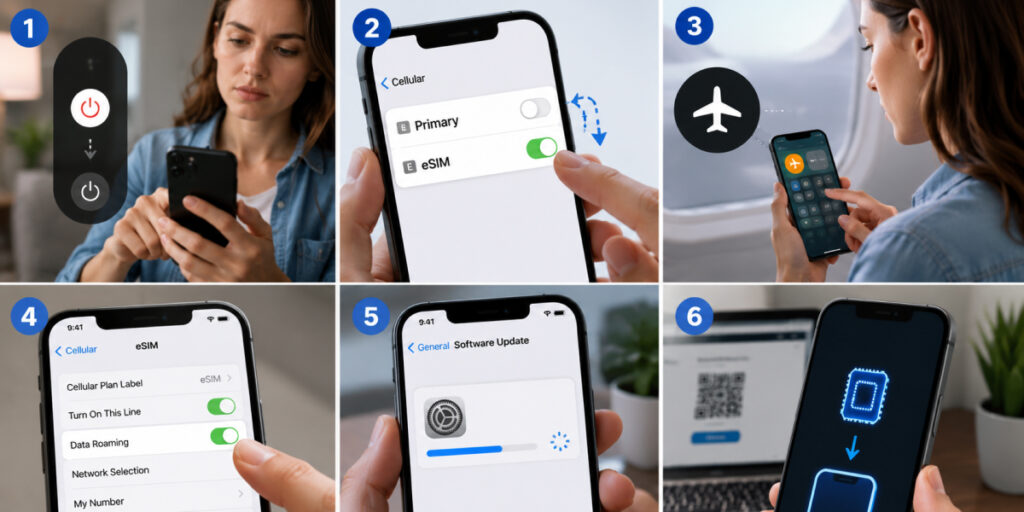
Work through these roughly in order, simplest to most involved. Not every step will apply to your specific situation — if you already recognize your symptom, jump straight to the dedicated section below instead of working through the whole list.
- Restart your phone fully. Power it off completely rather than using a quick restart, wait a few seconds, then turn it back on. This gives your phone a clean shot at re-registering with the network and reloading the eSIM profile.
- Toggle Airplane Mode on, then off, waiting about 15–30 seconds in between. This forces your phone to search for the network again. Our Airplane Mode guide explains why this actually works, if you’re curious.
- Confirm the eSIM line is switched on in your cellular or connections settings.
- Confirm the eSIM is set as your mobile data line, not another SIM or eSIM on the same device.
- Turn on data roaming, if your plan requires it for the destination you’re in.
- Check network selection. Automatic is correct in most cases, but if your phone keeps landing on an unsupported network, manual selection can help.
- Check your APN against the exact value your provider supplied — never a generic or guessed value.
- Check signal and coverage where you are right now, to rule out a network-side issue.
- Check your plan status and data balance in your provider’s app.
- Check for a carrier lock or device compatibility issue, which no amount of settings changes will resolve.
- Install any pending software update.
- Reinstall or re-download the eSIM only if the steps above haven’t worked — see the warning below before doing this.
- Contact your provider if you’ve worked through the list and it’s still not resolved.
A note before you reinstall anything: deleting an eSIM profile isn’t a move to make early. Some providers let you re-download a profile if needed; others limit this, particularly on data-only travel plans, and a used QR code may not work a second time. Remove a profile before you’ve confirmed your provider’s policy, and you could end up without an easy way back in. Try everything above first, and check your provider’s instructions before deleting.
eSIM Connected but No Internet?
This is one of the most common versions of the problem, and it’s confusing precisely because it looks like everything’s fine. Your eSIM shows as installed and connected, but nothing loads. The reason: being “connected” and having working data are two separate states. Your phone can register with a network perfectly well without data ever successfully passing through it — which is exactly the kind of gap that makes this symptom so frustrating to diagnose on your own.
Work through these in order:
- Is the eSIM enabled? Confirm it hasn’t been toggled off.
- Is it selected for mobile data? On a dual-SIM device, this is the step people skip.
- Is data roaming enabled, if your plan needs it for this network?
- Is the APN correct? Enter it exactly as your provider specifies.
- Is your phone connected to a supported network? Some plans only work with specific local partner networks.
- Is the plan active with data remaining? Check your provider’s app to confirm.
Those six checks resolve this particular problem in most cases. Still not working after all six? Skip ahead to the escalation section further down.
Calls Work, But Data Doesn’t (or Vice Versa)
This is a specific version of “connected but not working” that deserves its own name, because it points somewhere slightly different than the checklist above. On a dual-SIM phone, voice calls, texts, and data can each be assigned to a different line — so it’s entirely possible for calls to route through your physical SIM while data is supposed to route through your eSIM, or the other way around, without you ever having set it up that way on purpose. If this is what you’re seeing, check your phone’s SIM settings for separate “calls,” “texts,” and “data” assignments, and make sure data specifically is pointed at the line you intend. This is a dual-SIM configuration issue rather than a data-plan or roaming issue, so the APN and roaming checks above won’t fix it on their own — see the Dual SIM / eSIM Conflicts section further down for the full walkthrough.
eSIM Showing “No Service,” “Searching,” or “No SIM”
“No Service” means your phone isn’t currently registered with any usable network. “Searching” means it’s actively trying and hasn’t succeeded yet. A “No SIM” or “SIM Not Provisioned” message is a slightly different signal, and worth distinguishing from the other two — it usually means your phone can’t detect a valid eSIM profile at all, rather than a network registration problem. All three tend to trace back to a similar handful of causes:
- Weak or absent coverage in your exact location
- The network available to you isn’t one your plan supports
- Manual network selection stuck on the wrong network
- Data roaming disabled
- The eSIM line itself switched off
- A carrier lock preventing registration
- A device compatibility issue
- A network outage on the local carrier’s side
- For “No SIM” specifically: the profile may have been removed, corrupted, or never fully installed in the first place
If you’re specifically seeing “No SIM” or “SIM Not Provisioned,” start by checking whether the eSIM still appears at all in your cellular or SIM settings. If it’s gone entirely, that’s usually a sign the profile needs to be reinstalled rather than just re-enabled — see the reinstalling guidance later in this guide before you do that.
One quick way to narrow down “No Service” or “Searching”: if a physical SIM or another eSIM on the same phone gets signal in the same spot, the problem is likely specific to your eSIM’s settings, not the location. If nobody around you has signal either, you’re probably looking at a coverage or outage issue that no amount of settings-tinkering will fix. Ruled out both? That’s a reasonable point to contact your provider.
eSIM Disappeared After a Software Update
Occasionally an eSIM profile that was working fine simply isn’t there anymore after an iOS or Android update — no error message, no warning, just gone from your settings. This happens because eSIM profiles are tied closely to the operating system’s own cellular management, and an update can occasionally reset or fail to migrate that data correctly. It’s rare, but it’s real, and it catches people off guard precisely because nothing about it looks like a typical “something’s wrong” message.
What to try:
- Restart your phone first. Sometimes the profile is still there but the settings screen hasn’t refreshed properly.
- Check for a repair or diagnostics option. Some recent iOS versions include a cellular repair tool, generally reachable through Settings → General → About, that can detect and attempt to fix a damaged eSIM listing without a full reinstall.
- Check whether your provider keeps a re-download option. Some providers, may allow a profile to be re-installed from your account if the original is lost this way.
- If it’s genuinely gone, treat it like any other reinstall — check your provider’s policy on reusing a QR code or activation link before assuming you can simply redo the original setup.
eSIM Blocked by Work or IT Device Management (MDM)
If your phone is managed by an employer — common on company-issued phones, or personal phones enrolled in a corporate “bring your own device” program — a device management policy can restrict eSIM changes entirely, independent of anything else on this page being correctly configured. This is one of those problems that has nothing to do with your settings and everything to do with a policy sitting above them.
Signs this might be what’s happening:
- You get a message referencing a restriction, policy, or your organization when trying to add or modify a cellular plan
- Settings related to cellular or SIM management appear greyed out or missing
- The phone otherwise behaves normally, but nothing related to eSIM setup will proceed
What to do: check whether your device is enrolled in mobile device management before assuming it’s a settings issue on your end. On iPhone, this is usually visible under Settings → General → VPN & Device Management. On Android, look for a “Work Profile” or device administrator listing under your security or accounts settings. If your device is managed, your organization’s IT team will need to approve or adjust the relevant policy — this isn’t something that can be worked around from the phone alone, no matter how many times you toggle Airplane Mode.
Unable to Activate eSIM
Quick answer: Seeing “Unable to Activate eSIM” before you’ve traveled can be completely normal, since activation on many travel eSIM plans is designed to complete only once your phone reaches a supported network at your destination. It’s not automatically fine, though — if the message is still showing after you’ve arrived and connected, or if you’re not traveling at all, it’s worth troubleshooting rather than assuming it’ll sort itself out.
It helps to think of this as three separate things that can each go wrong independently:
- Installing the eSIM profile — downloading it onto your device via QR code or activation code.
- Activating the plan — the plan becoming usable, which for many travel eSIMs happens automatically on first connecting to a supported network rather than at the moment of installation.
- Connecting to a network — your phone actually registering with a carrier.
If activation is failing and you’re not sure why:
- Seeing the error before you travel? Expected in most cases — check again once you’ve landed and your phone has had a chance to connect locally.
- Seeing it after you’ve arrived and connected? Confirm your device is genuinely eSIM-compatible, check for a carrier lock, and confirm the QR code or activation code hasn’t already been used.
- Installation itself failed? This usually needs a stable internet connection — Wi-Fi is generally the most reliable option — so try again on a strong connection before assuming the eSIM or QR code is faulty.
- Still failing after all of the above? Contact your provider rather than continuing to retry the same steps on a loop.
eSIM Not Working on iPhone
Menu wording shifts slightly between iOS versions, so if a label below doesn’t match exactly what you’re seeing, look for the closest equivalent under Settings → Cellular.
- Confirm the eSIM line is present and enabled: Settings → Cellular.
- Set it as your Cellular Data line: Settings → Cellular → Cellular Data → select your eSIM.
- Turn on Data Roaming, if needed: Settings → Cellular → tap your eSIM → Data Roaming.
- Check Network Selection: Settings → Cellular → tap your eSIM → Network Selection (Automatic works for most situations).
- Check APN, where applicable: Settings → Cellular → tap your eSIM → Cellular Data Network.
- Check for a carrier lock: Settings → General → About, looking for carrier lock or SIM restriction status.
- Update iOS: Settings → General → Software Update.
- Restart or toggle Airplane Mode as described above.
An “Unable to Activate” message, a “No Service”/”Searching” status, and an eSIM that’s disappeared after an update all behave the same way on iPhone as described in the dedicated sections above — same underlying causes, same checks, regardless of device.
eSIM Not Working on Android
On Android, exact menu names vary by manufacturer and version, so treat the paths below as examples rather than a universal map.
- Samsung Galaxy: Settings → Connections → SIM Manager — confirm the eSIM is listed and enabled.
- Google Pixel: Settings → Network & Internet → SIMs.
- Other Android phones: look for Settings → Connections (or Network & Internet) → SIMs or Mobile Network.
- Set Mobile Data to your eSIM in the same menu.
- Turn on Data Roaming, usually under Mobile Networks.
- Check Network Selection/Network Operators, typically under the same Mobile Networks menu — Automatic is usually correct.
- Check APN under Access Point Names.
- Check for dual-SIM conflicts if you have a physical SIM and an eSIM active together — confirm which line is assigned to calls and which to data.
- Update your software if an update is available.
- Restart your phone or toggle Airplane Mode, as described above.
Don’t see your device listed here specifically? Check our list of eSIM-compatible devices — the settings menu structure tends to stay fairly consistent within the same manufacturer, even across different models.
Data Roaming, Carrier Locks, and Network Selection
Do you need data roaming on for an eSIM? Usually, yes. Many travel eSIM plans connect you to a local partner network abroad rather than your home network, and your phone treats that as roaming by default. That said, this isn’t universal across every eSIM or every plan — follow your specific provider’s instructions rather than assuming every travel eSIM behaves identically. And you don’t need to touch the roaming settings on your home SIM to get a travel eSIM working; the setting that matters lives on the eSIM line itself.
Can a carrier lock prevent an eSIM from working? Yes, and it’s a hard stop. A carrier-locked phone is restricted to the carrier that issued it, which can cause it to reject an eSIM from a different provider even when every other setting is exactly right. On iPhone, check Settings → General → About for lock status. On Android, the method varies by manufacturer — your carrier can usually confirm this directly if it’s not obvious in settings.
When does network selection actually matter? Automatic works correctly most of the time, which is why it’s the default. Manual selection is worth trying only if your phone keeps registering on a network your plan doesn’t actually support — and yes, it’s entirely possible to have full signal bars while connected to a network your provider has no agreement with at all.
Dual SIM / eSIM Conflicts
Running a physical SIM and an eSIM together, or two eSIM profiles on the same device? A few things are worth checking specifically:
- Confirm which line is set for calls and which is set for mobile data — some phones let you assign these separately.
- Confirm data roaming is enabled on the correct line, since this setting is usually applied per line rather than globally.
- If both lines were recently active at once, toggling one off and back on can help resolve a registration conflict.
- If you’ve checked everything else and data still won’t route through the eSIM, try temporarily disabling your physical SIM (or the other eSIM) entirely. This isolates the problem: if the eSIM starts working with the other line switched off, you’re dealing with a line-conflict issue rather than a problem with the eSIM itself, and you can re-enable the other line once you’ve confirmed which settings needed adjusting.
- The number of eSIM profiles you can store, and how many can be active simultaneously, depends on your specific device — this isn’t consistent across all phones.
Slow or Disconnecting eSIM
A slow or unstable connection doesn’t necessarily point to anything wrong with the eSIM itself. eSIMs don’t inherently run faster or slower than physical SIMs — performance comes down to the network you’re connected to, not the format of the SIM. That distinction matters, because it’s easy to blame the eSIM when the real culprit is sitting on the network side entirely.
Common contributing factors: weak local coverage, network congestion in busy areas, limited 4G/5G availability where you are, a manually selected network that isn’t actually the strongest option available, or creeping up on your data limit if your plan throttles speed near the cap.
Worth trying: moving to an area with better coverage, restarting your phone, toggling Airplane Mode, confirming network selection is set to Automatic, or switching from 5G to LTE/4G if 5G specifically seems unreliable in your current location.
When to Contact Your eSIM Provider
Reach out to your provider if:
- The eSIM won’t install even after retrying on a stable connection
- Activation keeps failing despite being at your destination with a supported network available
- Your plan shows as active, but the network still isn’t working
- You’ve worked through the relevant sections above without success
Having the following ready will speed things up considerably:
- Your order or reference number
- Your device model
- Your destination
- The exact error message you’re seeing (a screenshot helps)
- Whether the eSIM shows as installed
- Whether it appears connected to a network
- Whether you currently have access to Wi-Fi
If you’re an Airhub customer, our support team can look into order-specific or destination-specific issues once they have these details in hand.
Should You Delete and Reinstall Your eSIM?
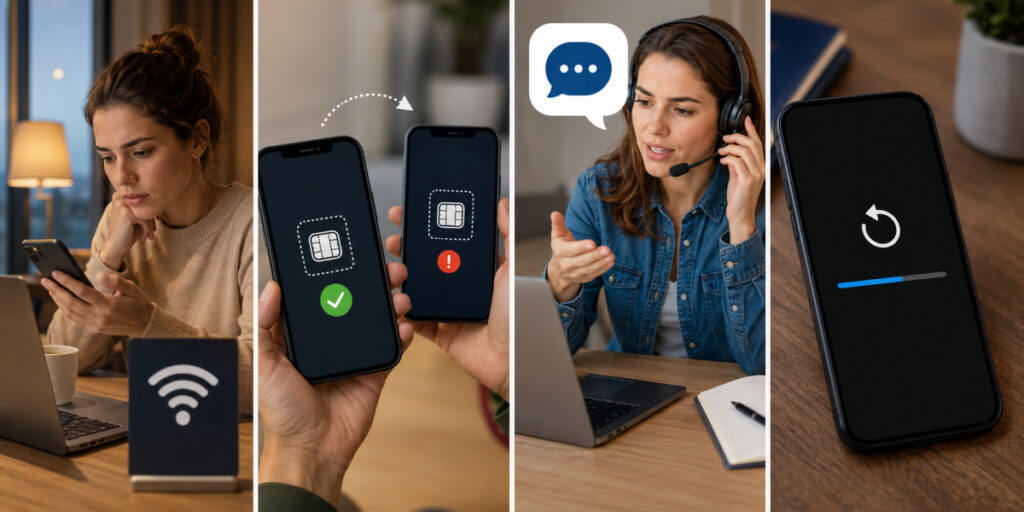
Only after you’ve worked through the checks above — never as a first move. Removing an eSIM profile means starting the install from scratch, and not every provider allows the same QR code or activation link to be reused. Before deleting anything, confirm your provider’s policy on reinstalling a profile. Skip that step and you risk being left without a working connection until support can step in.
It’s also worth knowing that a full factory reset is not the same thing as deleting just the eSIM profile — it’s a much bigger step, and an easy one to underestimate. A factory reset wipes eSIM profiles entirely on most phones, and unlike a physical SIM, there’s nothing to simply pop back in afterward. If you’re planning to factory-reset your phone for any reason, treat your eSIM the same way you’d treat any other data you don’t want to lose: confirm you still have your original QR code or activation details saved somewhere, or check with your provider about re-issuing your profile, before you start the reset.
If you’re troubleshooting a persistently uncooperative eSIM and considering starting fresh with a new plan instead, you can buy a prepaid eSIM for your next destination — once you’ve confirmed the current issue isn’t just a simple settings fix.
FAQs
1. Why is my eSIM not working?
Most commonly, it’s data roaming being off, the eSIM not being set as your data line, an incorrect APN, or an activation step that hasn’t completed — check those first before assuming anything is broken.
2. Why is my eSIM connected but there’s no internet?
Being connected to a network and having working data are different things. Check your data line, data roaming, and APN, in that order.
3. Why is my eSIM not working on iPhone?
Confirm it’s listed under Settings → Cellular, set as your Cellular Data line, and that Data Roaming is on if your plan requires it. An “Unable to Activate” message before travel can be expected in many cases.
4. Why won’t my eSIM activate?
This can be normal before you’ve traveled, since many plans activate on first connecting to a network at your destination. If it’s still failing after arrival, check device compatibility, carrier lock status, and whether your QR code has already been used.
5. Does data roaming need to be on for an eSIM?
For most travel eSIM plans, yes, since they typically connect to a local partner network your phone classifies as roaming. Confirm with your specific provider’s instructions, since this can vary by plan.
6. Why does my eSIM show No Service?
Usually weak coverage, an unsupported network, or roaming being disabled. Check network selection and roaming before assuming a deeper problem.
7. Why is my eSIM slow?
Typically related to local coverage, network congestion, or which network you’re connected to, rather than the eSIM itself.
8. Can a carrier lock prevent an eSIM from working?
Yes — a locked phone can reject an eSIM from a different provider regardless of whether your settings are otherwise correct.
9. Can I use two eSIMs at the same time?
Many devices support multiple stored eSIM profiles, though how many can be active simultaneously depends on your specific phone.
10. Should I delete and reinstall my eSIM?
Only after trying the other troubleshooting steps, and only once you’ve confirmed your provider’s policy on reinstalling — some providers limit how many times a profile can be redownloaded.
11. Can I use the same eSIM QR code on more than one device?
No — an eSIM QR code or activation code is generally tied to a single device once it’s used. If you need eSIM access on a second phone, you’ll typically need a separate plan or a fresh activation code from your provider rather than reusing the original one.
Leave a Reply